Gmail Daily Sending Limits
Understand Gmail's daily sending limits and how they affect your campaigns. Learn the difference between free and Workspace limits, how to stay compliant, and how to check your daily usage.
- What Are Gmail's Daily Sending Limits?
- Free Gmail vs. Google Workspace Limits
- How MassyMail Handles These Limits
- How to Stay Under Your Limit with Scheduling
- How to Check How Many Emails You've Sent Today
What Are Gmail's Daily Sending Limits?
Gmail enforces a limit on how many emails you can send within a rolling 24-hour period. This is a hard limit set by Google — not by the mail merge tool you use. If you exceed it, Gmail will block further sending until the window resets. Emails that fail after the limit is hit are not automatically retried.
The limits exist to protect Gmail's infrastructure and to prevent abuse — large-scale spam campaigns from Gmail accounts would degrade email deliverability for everyone on the platform.
Free Gmail vs. Google Workspace Limits
The sending limit differs depending on your account type:
- Free Gmail accounts (@gmail.com) — up to 500 emails per day (including replies, forwards, and emails sent by add-ons like MassyMail).
- Google Workspace accounts (paid) — up to 1,500 emails per day. This applies to accounts with any Google Workspace plan (Business Starter, Business Standard, etc.).
These totals include all emails sent from your account — not just campaigns. If you send 50 regular emails in a day and then run a mail merge, those 50 count against your limit. For the official limits, see Gmail's Sending Limits on Google Support.
How MassyMail Handles These Limits
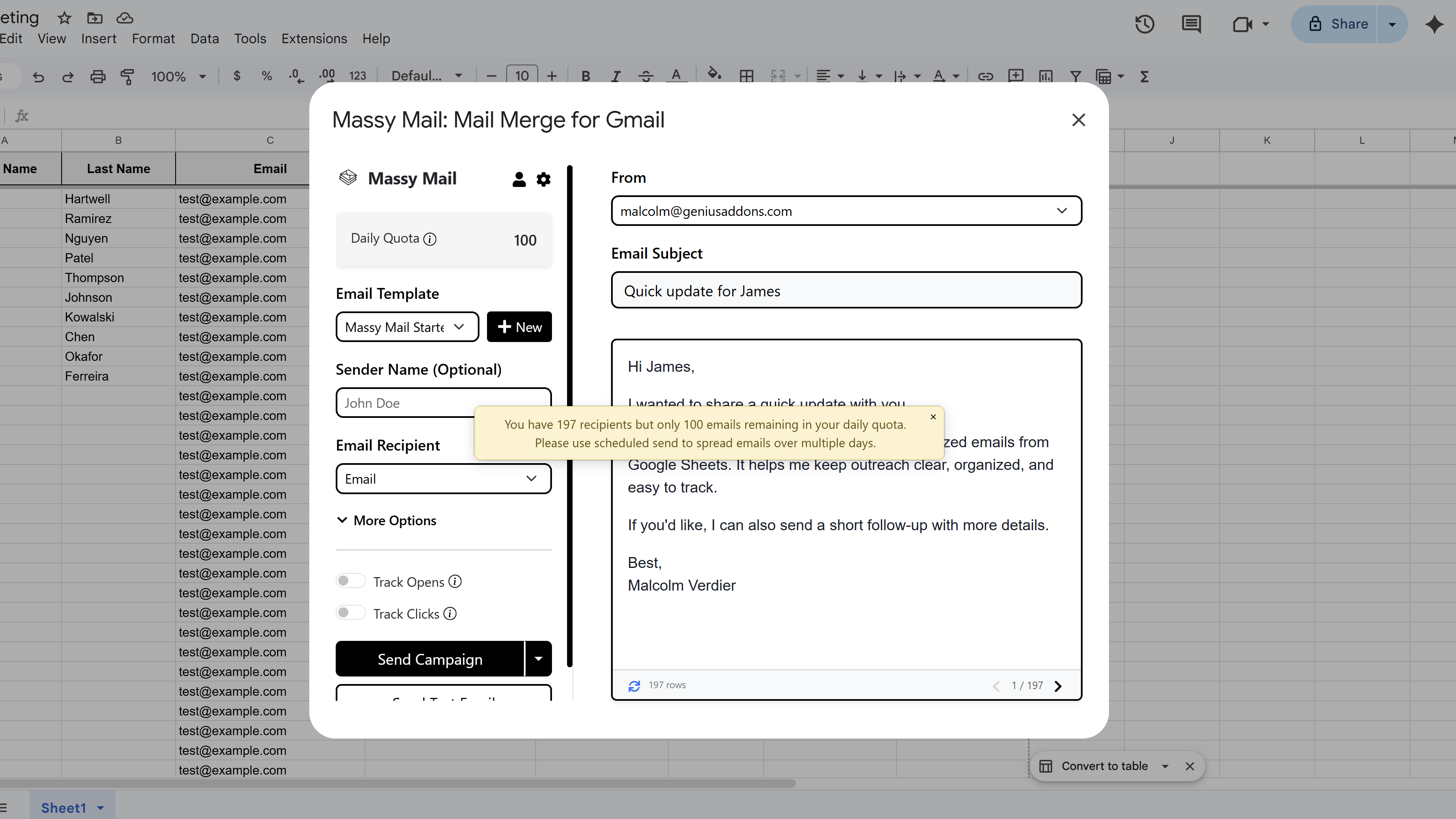
MassyMail is aware of Gmail's sending limits and is designed to help you work within them. When you attempt to send a campaign that would exceed your daily limit, MassyMail will warn you before sending and suggest using the scheduled sending feature to spread your campaign across multiple days.
For campaigns that fit within your daily limit, MassyMail will send at standard speed with short pauses between sends to avoid triggering Gmail's rate limiting on rapid-fire sends (separate from the daily limit).
How to Stay Under Your Limit with Scheduling
The most reliable way to send large campaigns without hitting Gmail's limits is to use MassyMail's scheduled sending feature. Here's how to plan it:
- 1,000 recipients on a free Gmail account (500/day limit): Schedule 400–450 emails per day over 2–3 days, leaving a buffer for your regular email use.
- 3,000 recipients on Google Workspace (1,500/day limit): Schedule 1,200–1,300 per day over 3 days.
To create a scheduled campaign, set up your campaign in MassyMail as normal, then click Schedule instead of Send Campaign. Set your preferred emails per day and the hour of day to trigger each batch.
How to Check How Many Emails You've Sent Today
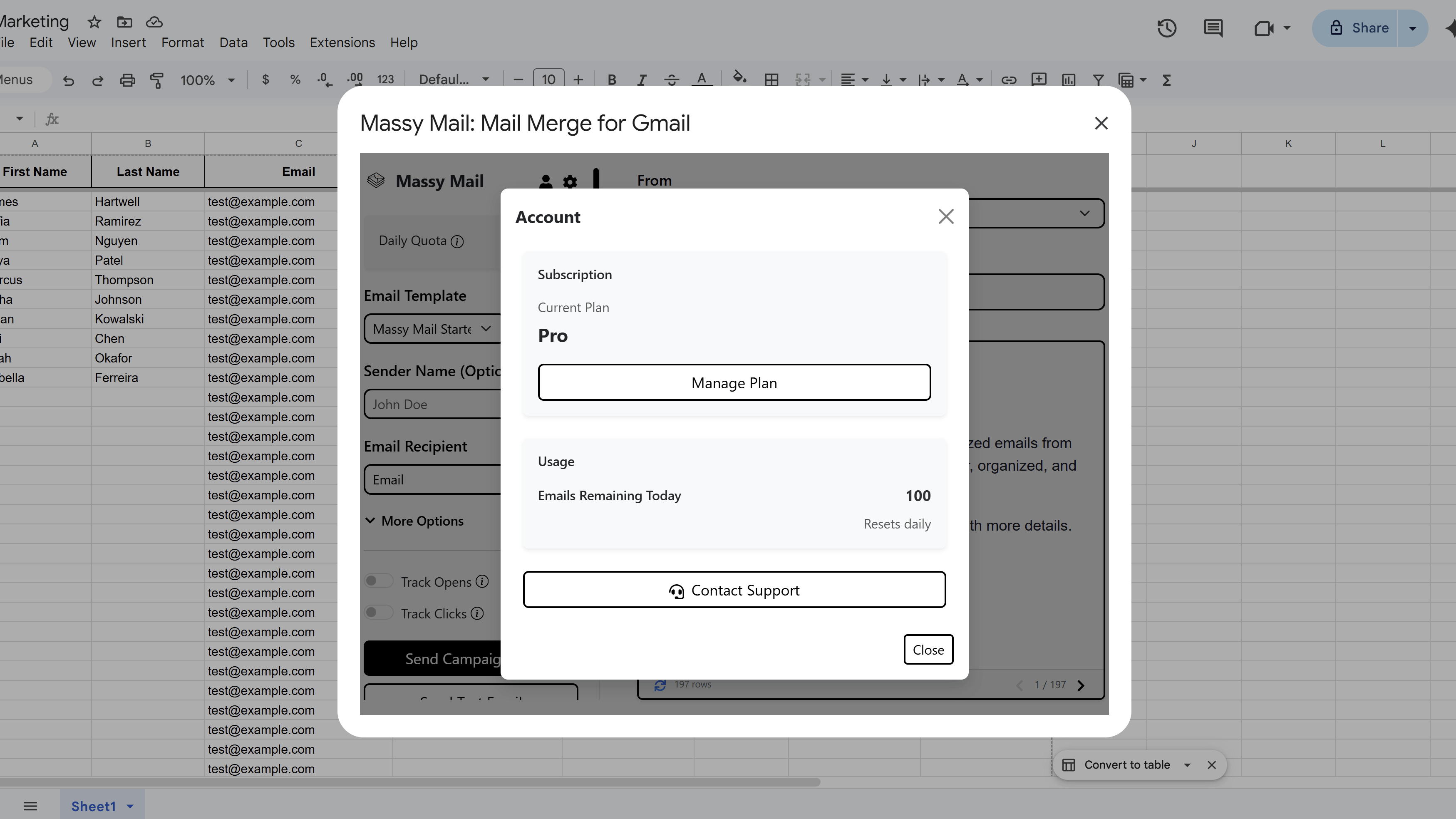
MassyMail shows your remaining daily quota in the Account modal. Click your account icon in the top right of the MassyMail sidebar, and the account panel will display a usage card with your current plan, your daily email allowance, and how much of it has been used today.
This gives you a clear picture of how much sending capacity you have left before planning a new campaign.
Tips and Best Practices
- Always leave at least 50–100 emails of buffer below your daily limit — your normal day-to-day Gmail use counts toward the same limit.
- If you need to send very large campaigns regularly, consider upgrading to a Google Workspace plan to get the higher 1,500/day limit.
- Spread campaigns across days intentionally — studies show that emails sent in consistent smaller batches often have better deliverability than massive single sends.
Common Pitfalls to Avoid
- Don't assume your daily limit resets at midnight — Gmail's limit is a rolling 24-hour window, not a fixed calendar-day reset.
- Don't try to bypass the limit by splitting sends across two Gmail accounts on the same campaign — this can cause duplicate sends to some recipients.
For a complete walkthrough of Gmail mail merge — including templates, scheduling, and tracking — see our Gmail Mail Merge: The Complete Guide. New to MassyMail? Install it free from the Google Workspace Marketplace.
MassyMail: Mail Merge for Gmail
Send personalized bulk email campaigns directly from Gmail using your Google Sheets data. Schedule campaigns, track opens and clicks, and manage templates without leaving Google Workspace.
- Send up to 1,500 emails/day
- Merge fields & personalization
- Scheduled email campaigns
- Email open & click tracking
- Reusable email templates
- Built right into Google Sheets