How to Use Merge Fields
Master merge fields to personalize your email campaigns. Learn how to set up sheet headers, insert merge fields in subject lines and email bodies, and preview personalized emails before sending.
4 min read
Updated 3/15/2026
- What Are Merge Fields?
- Set Up Your Google Sheet Headers
- Add Merge Fields to Your Subject Line
- Add Merge Fields to Your Email Body
- Preview Personalized Emails Before Sending
What Are Merge Fields?
Merge fields are placeholders in your email template that get automatically replaced with real data from your Google Sheet when a campaign is sent. Instead of writing "Dear Customer", you write "Dear {{First Name}}" — and every recipient gets a message that addresses them by their actual name.
MassyMail supports two placeholder formats for merge fields:
{{Column Header}}— double curly braces{Column Header}— single curly braces
Both formats work the same way. The text inside the braces must match the corresponding column header in your Google Sheet exactly (trimmed, but case-sensitive). If no match is found, the placeholder is left unchanged in the email.
Set Up Your Google Sheet Headers
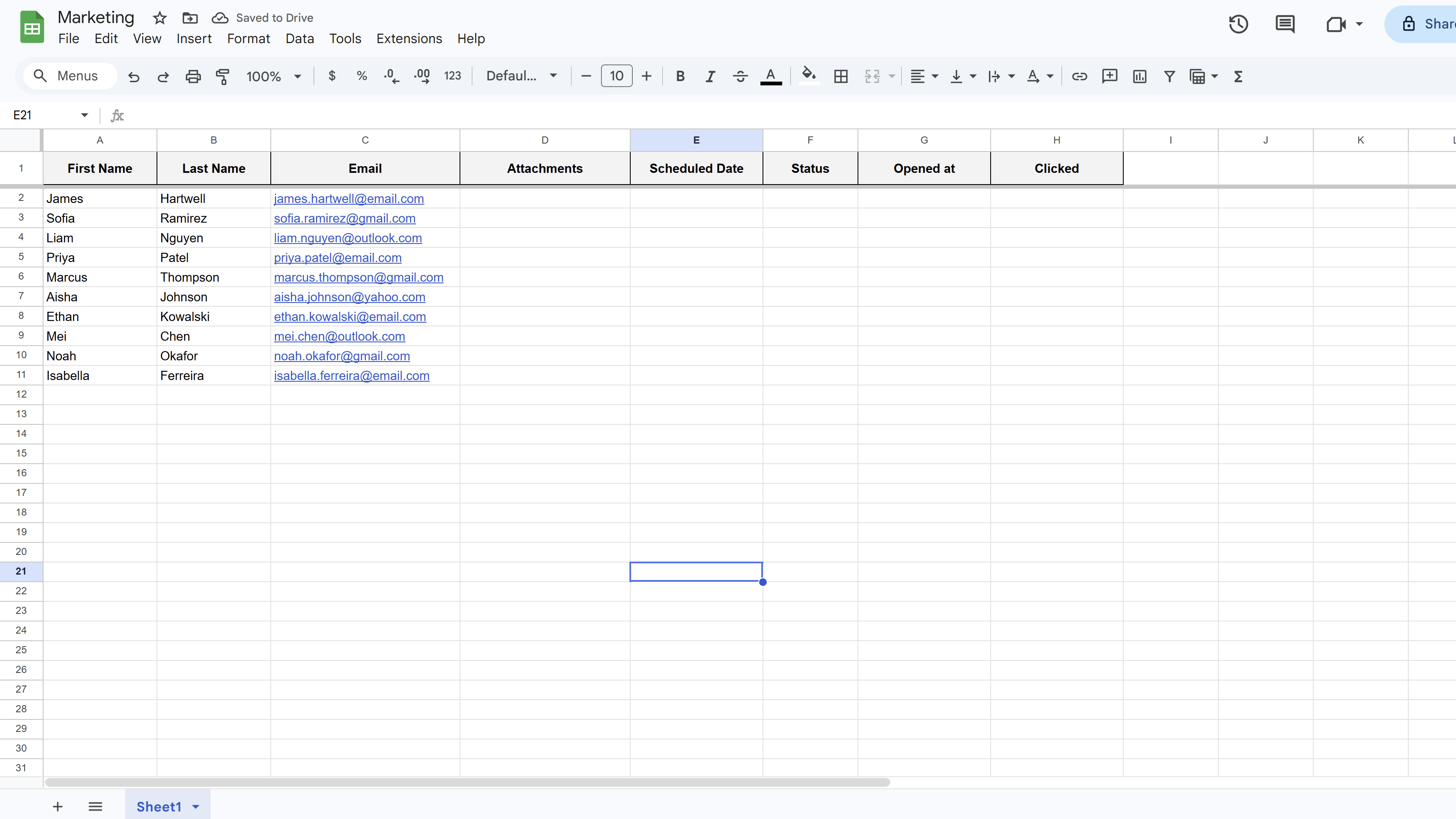
Your merge fields are driven entirely by your sheet's column headers. Before writing your template, set up your Google Sheet with descriptive, clean column headers in row 1. For example:
- First Name
- Last Name
- Company
- Order Number
Each header becomes available as a merge field. Avoid special characters in column headers (other than spaces), and don't add leading or trailing spaces as these affect whether the placeholder matches.
Add Merge Fields to Your Subject Line
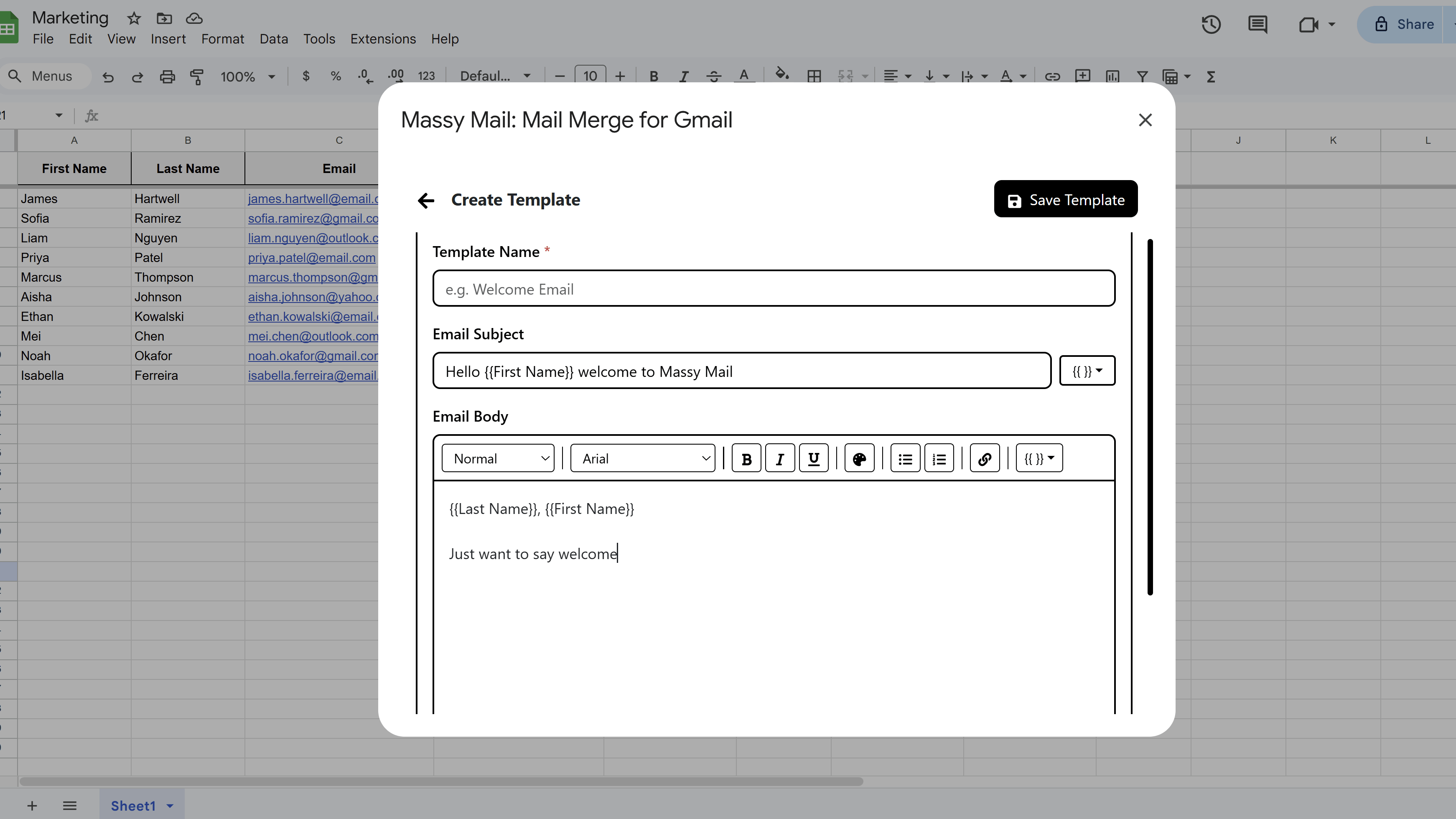
A personalized subject line stands out in a crowded inbox. In the MassyMail template editor, click into the Subject field and type or paste your merge field in curly braces wherever you want personalization. For example:
"{{First Name}}, here's your invoice for {{Month}}"
You can also use the Merge Fields insertion button in the editor toolbar to pick a field from a dropdown based on your current sheet's headers, which avoids typos.
Add Merge Fields to Your Email Body
Click anywhere in the body editor and insert merge fields the same way. You can reference any column from your sheet. Some effective ways to use merge fields in the body:
- Opening greeting: "Hi {{First Name}},"
- Company reference: "I noticed that {{Company}} recently..."
- Order or account details: "Your order #{{Order Number}} is ready."
- Custom call to action: "As a {{Plan}} member, you get exclusive access."
- Signature: "Looking forward to speaking with you, {{First Name}}."
There's no limit to how many merge fields you use in a single template. Every placeholder is resolved independently at send time for each recipient.
Preview Personalized Emails Before Sending
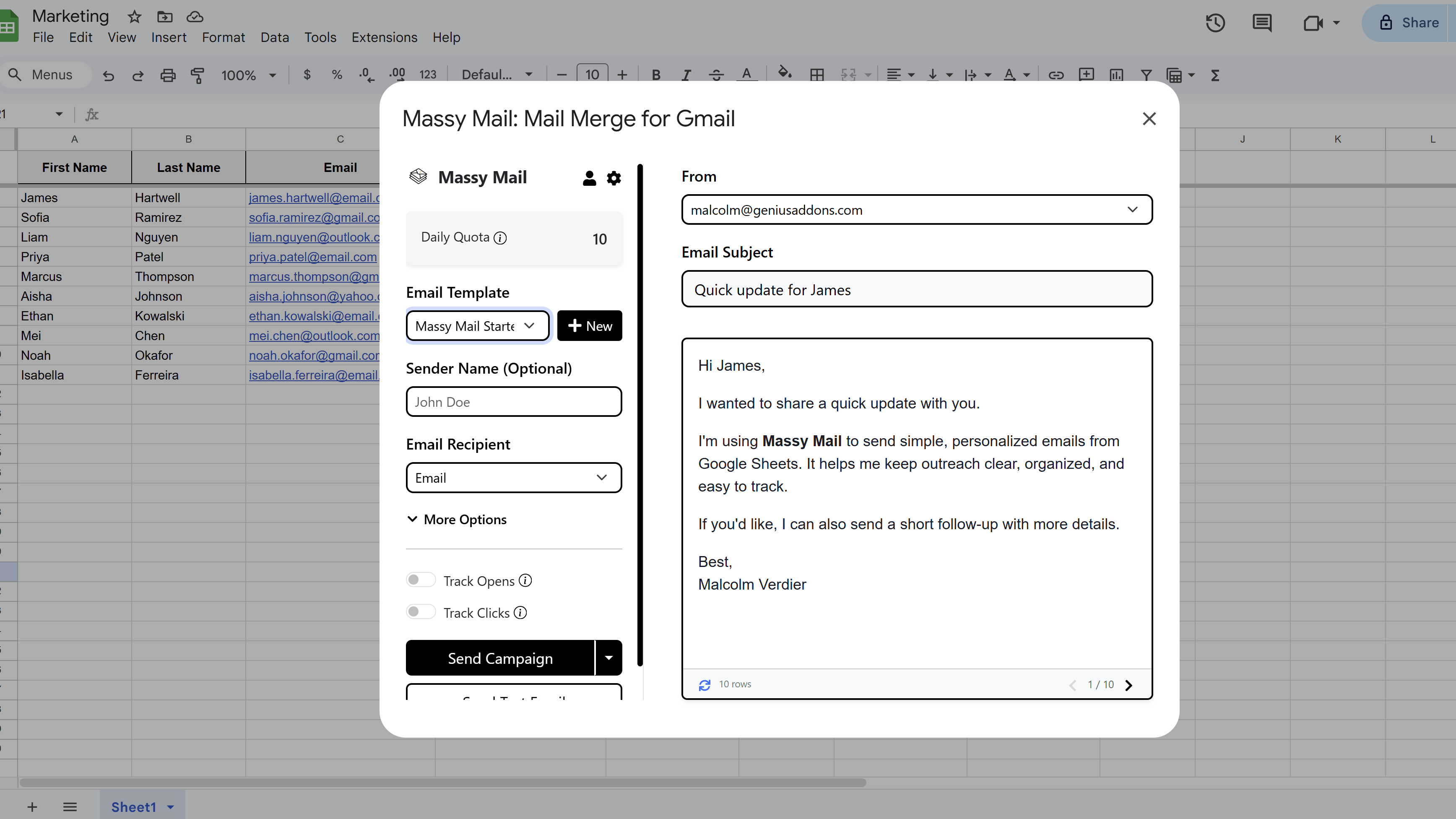
Before sending your campaign, use MassyMail's preview panel in the campaign workspace to see exactly what your email will look like for each recipient. The right-hand preview panel shows the email with merge fields substituted using your actual sheet data.
Use the next / previous row navigation arrows to scroll through your recipient list and check a sample of rows — paying particular attention to any recipients who may have unusual data (e.g. missing a company name, or a very long first name that might break formatting).
When you're confident the emails look correct, click Send Test Email to receive a real copy in your inbox before committing to the full send.
Tips and Best Practices
- Check for blank cells in your merge field columns before sending — if a recipient's "First Name" cell is empty, the greeting will read "Hi," with nothing after it.
- Create a fallback in your sheet data: if a field is optional, put a sensible default in the cell (e.g. "there" so the greeting becomes "Hi there,").
- Merge fields are case-sensitive —
{{first name}}won't match a column named "First Name". Use the insert toolbar to avoid typos.
Common Pitfalls to Avoid
- Don't rename your sheet columns after creating your template — any renamed headers will break existing merge fields in the template.
- If a merge field appears literally in the sent email (e.g. the recipient sees
{{Company}}), it means the placeholder didn't match any column header. Check spelling and look for extra spaces.
For a complete walkthrough of Gmail mail merge — including templates, scheduling, and tracking — see our Gmail Mail Merge: The Complete Guide. New to MassyMail? Install it free from the Google Workspace Marketplace.
Try Free
MassyMail: Mail Merge for Gmail
Send personalized bulk email campaigns directly from Gmail using your Google Sheets data. Schedule campaigns, track opens and clicks, and manage templates without leaving Google Workspace.
- Send up to 1,500 emails/day
- Merge fields & personalization
- Scheduled email campaigns
- Email open & click tracking
- Reusable email templates
- Built right into Google Sheets