What is a Mail Merge
Learn what a mail merge is and how it works. Discover how to send personalized bulk emails using Gmail and Google Sheets, common use cases, and the benefits of mail merge over manual email sending.
4 min read
Updated 3/15/2026
- What Is a Mail Merge?
- How Does a Mail Merge Work?
- Common Uses for Mail Merge
- Mail Merge vs. Sending Emails Manually
- How to Do a Mail Merge in Gmail
What Is a Mail Merge?
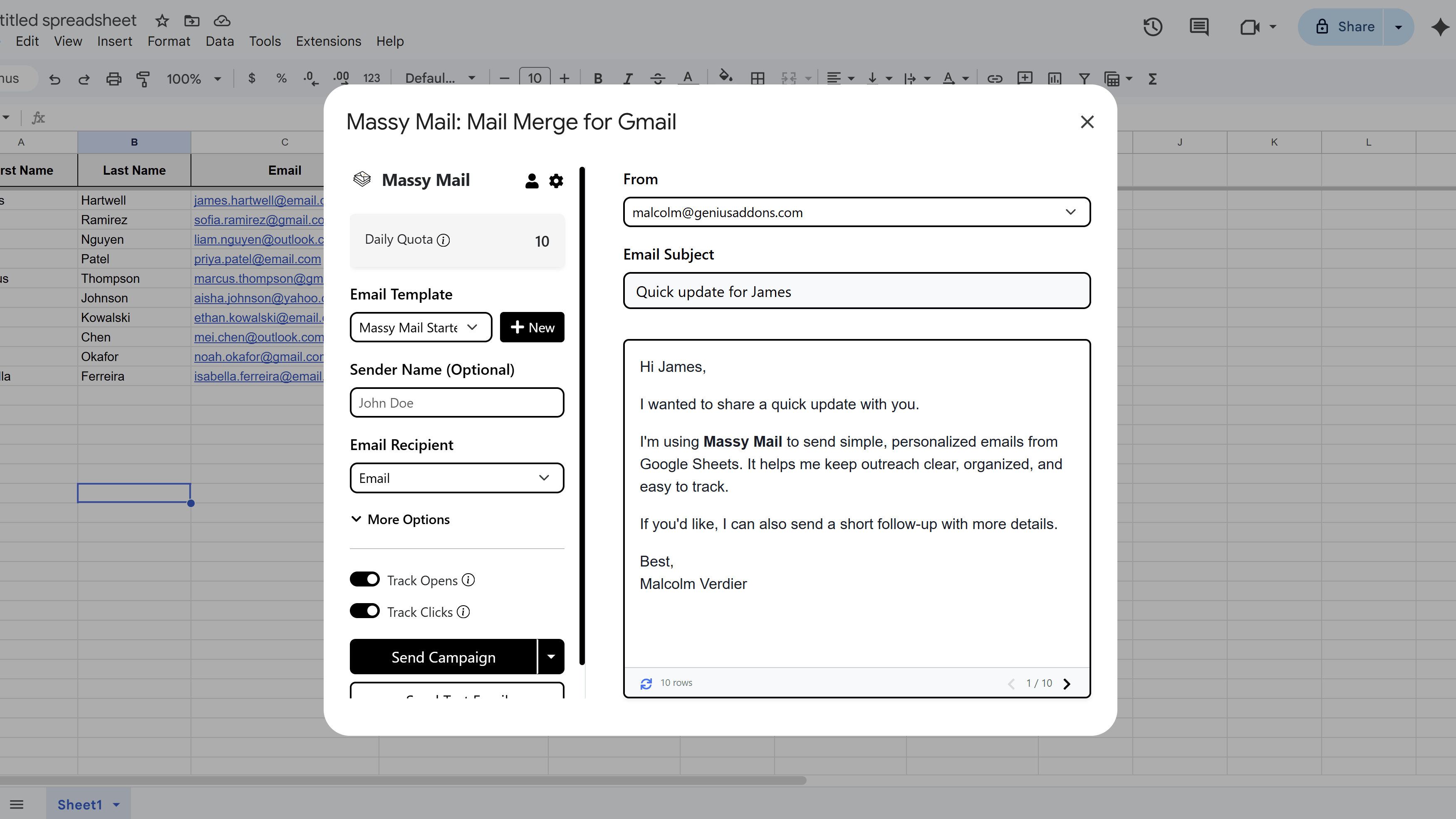
A mail merge is a technique that lets you send a large number of personalized emails from a single template. Instead of writing and sending each email one by one, you prepare a list of recipients — usually in a spreadsheet — and a single email template with placeholder fields. The mail merge tool then automatically fills in each placeholder with the corresponding data for every recipient and sends each email as a unique, personalized message.
The term "mail merge" originated from word processors that merged a form letter with a mailing list to produce individually addressed letters. Today, the same concept applies to email campaigns, letting you send hundreds or thousands of personalized messages in a fraction of the time it would take to do it manually.
How Does a Mail Merge Work?
A mail merge works in three basic steps:
- Prepare your recipient list. You create a spreadsheet (like Google Sheets) with one row per recipient and columns for any data you want to personalize — such as First Name, Last Name, Company, or any custom field.
- Write your email template. You write a single email and insert placeholder fields anywhere you want personalization to appear. For example: "Hi {{First Name}}, I wanted to reach out to you at {{Company}}..."
- Run the merge. The mail merge tool reads your spreadsheet, replaces each placeholder with the matching value for that row, and sends a personalized email to each recipient.
The result: every recipient receives an email that feels individually written for them, even if you sent it to 500 people at once.
Common Uses for Mail Merge
Mail merge is used across virtually every industry and team size. Common use cases include:
- Sales outreach — send personalized cold emails to prospects with their name, company, and a custom message.
- Event invitations — invite attendees by name and include event-specific details for each person.
- Customer newsletters — send updates that reference each subscriber's name or account details.
- HR communications — send onboarding emails, offer letters, or payroll notices to individual employees.
- Academic outreach — send teachers, students, or parents personalized notices with relevant grade or class data.
- Follow-up sequences — remind leads or customers with emails that reference their specific situation.
Mail Merge vs. Sending Emails Manually
Sending emails manually to a large list is time-consuming, error-prone, and impersonal. Here's how mail merge compares:
- Time: Manually writing 200 personalized emails could take hours. A mail merge sends all 200 in minutes.
- Personalization: Copy-pasting and editing each email risks mistakes. Mail merge replaces fields automatically and consistently.
- Tracking: With a mail merge tool like MassyMail, you can see who opened your email and who clicked your links — something manual sending doesn't give you.
- Scheduling: Mail merge tools let you schedule campaigns and send in daily batches to stay within Gmail's limits, something manual sending cannot do at scale.
How to Do a Mail Merge in Gmail
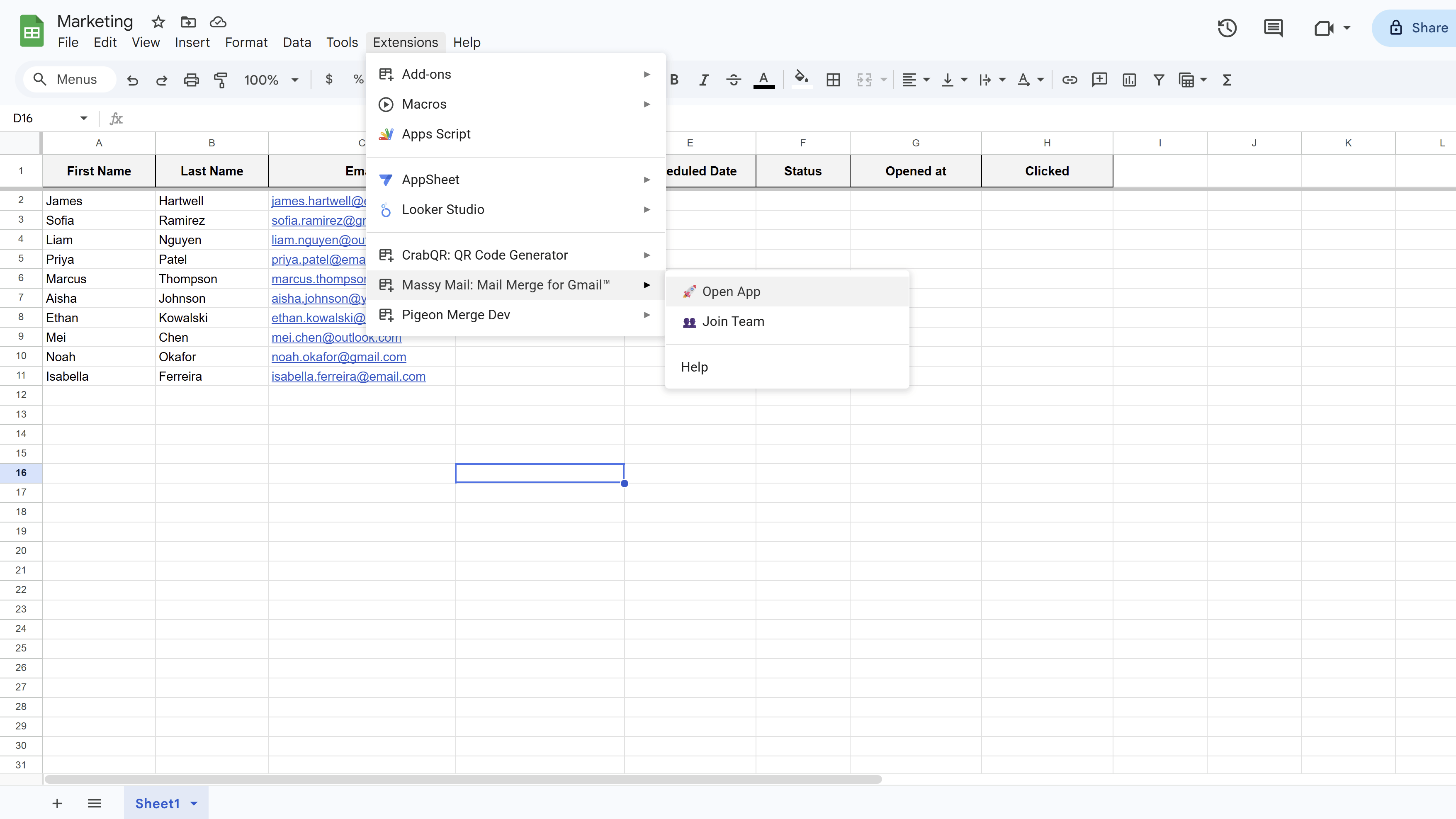
Gmail doesn't have a built-in mail merge feature, but you can do a full mail merge directly from Google Sheets using MassyMail: Mail Merge for Gmail. MassyMail is a Google Sheets add-on that lets you:
- Send personalized bulk emails using your Gmail account
- Use merge fields like
{{First Name}}in both subject and body - Schedule campaigns to spread sending across multiple days
- Track email opens and link clicks in real time
- Attach Google Drive files per recipient
You can install MassyMail for free from the Google Workspace Marketplace .
Tips and Best Practices
- Always send a test email to yourself before running a full campaign — this lets you catch any placeholder errors before they reach your recipients.
- Keep your spreadsheet clean: remove duplicate email addresses and rows with missing data before sending.
- Personalization goes beyond just the first name — try including company name, a recent purchase, or a specific detail that's relevant to each recipient.
Common Pitfalls to Avoid
- Don't forget to match your placeholder names exactly to your column headers —
{{firstname}}won't work if your column is named "First Name". - Avoid sending too many emails at once — Gmail has daily sending limits. Use scheduling to stay within those limits.
For a complete walkthrough of Gmail mail merge — including templates, scheduling, and tracking — see our Gmail Mail Merge: The Complete Guide. New to MassyMail? Install it free from the Google Workspace Marketplace.
Try Free
MassyMail: Mail Merge for Gmail
Send personalized bulk email campaigns directly from Gmail using your Google Sheets data. Schedule campaigns, track opens and clicks, and manage templates without leaving Google Workspace.
- Send up to 1,500 emails/day
- Merge fields & personalization
- Scheduled email campaigns
- Email open & click tracking
- Reusable email templates
- Built right into Google Sheets