How to Make a Sign Up Sheet on Google Forms
Discover a step-by-step guide on how to create a comprehensive sign-up sheet using Google Forms. Learn from opening the website to finalizing and sharing your form.
- Opening Google Forms
- Creating a New Form
- Defining Questions
- Finalizing and Sharing Your Form
- Tips and Best Practices
- Common Pitfalls to Avoid
- External Resources
Opening Google Forms
Open up a web browser and go to the Google Forms website.
Creating a New Form
Click on the 'Go to Google Forms' button on the middle of the page if you are not already logged into your Google account. If you are, click on the blank form to create a new form.
Defining Questions
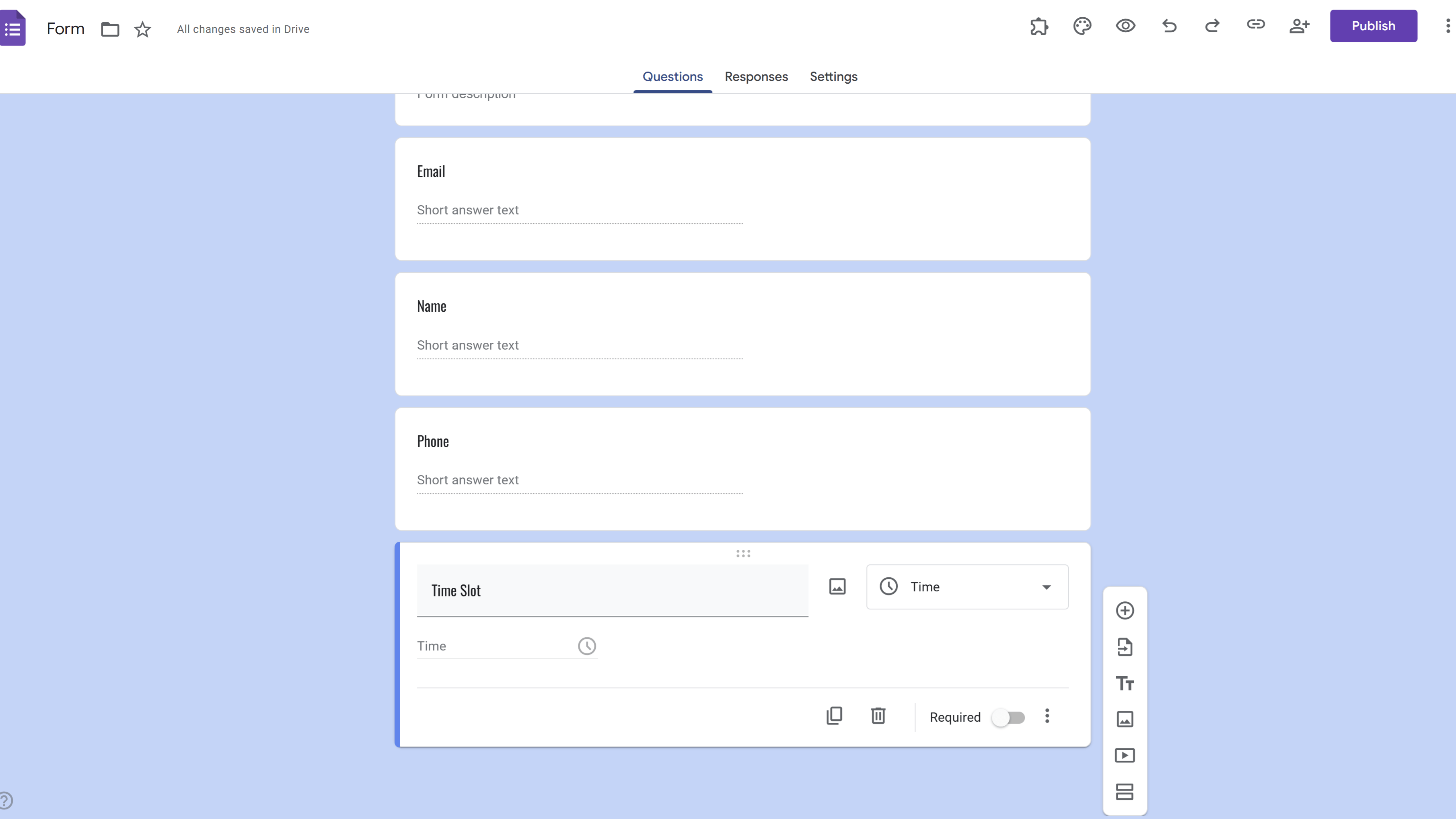
In the form that opens, give your form a title by clicking on the 'Untitled form' text at the top of the page. This could be something like 'Sign-Up Sheet'. Then, define your first question by clicking on the 'Untitled Question' text. For a basic sign-up sheet, you could start with 'Full Name'. Choose the type of answer you want to collect by clicking on the dropdown menu on the right side of the question. For something like a full name, you would choose 'Short answer'. Click on the 'Required' slider at the bottom right of the question to make it necessary for people to fill out. Repeat these steps for each piece of information you want to collect. For a basic sign-up sheet, this could include things like 'Email Address', 'Phone Number', and 'Preferred Time Slot'.
Finalizing and Sharing Your Form
Once you have created all of your questions, click on the gear icon at the top right of the form to access the settings. In the settings, click on the 'Collect email addresses' option if you would like to collect this information from each respondent. Click on the 'Send' button at the top right of the form when you are ready to share your sign-up sheet. In the window that opens, choose how you would like to share your form. You can email it directly to people, get a shareable link, or embed the form on a webpage. Once the form is shared, all responses will be collected in the 'Responses' tab of your form.
Tips and Best Practices
Keep your questions simple and straightforward to avoid confusion. Make sure to make all important questions 'Required' so you don't miss out on any important information. You can add images or videos to your form to make it more engaging and informative. Use the 'Preview' button at the top right of the form to see what your form will look like to respondents before you send it out.
Common Pitfalls to Avoid
Don't ask for too much information. This can deter people from filling out your form.
External Resources
BeeForm: Pretty Forms Designer
Transform Google Forms into beautiful, branded, and highly customizable web forms. Apply advanced styling, manage responses, and collaborate.
- Custom Branding & Layouts
- Advanced Design Controls
- Response Limits & Email Notifications
- Preset & Custom Themes
- Team Collaboration
- Built right into Google Forms