How to Import Google Contacts
Import your Google Contacts directly into Google Sheets for mail merge campaigns. Learn how to fetch, filter, select, and map contact fields using MassyMail's built-in importer.
- Open the Import Contacts Feature
- Fetch and Filter Your Contacts
- Select Contacts to Import
- Map Contact Fields to Sheet Columns
- Run the Import
Open the Import Contacts Feature
MassyMail has a built-in Google Contacts importer that lets you pull your contacts directly from your Google account into your Google Sheet — no manual CSV export required. To access it, open the MassyMail sidebar via Extensions > MassyMail > Open, then look for the More Options menu in the campaign workspace. Click Import Contacts.
The import modal will open and begin fetching your contacts from Google Contacts via the Google People API. Depending on how many contacts you have, this may take a moment.
Fetch and Filter Your Contacts
Once your contacts are loaded, you'll see a searchable, filterable table. Use the available filters to narrow down the contacts you want to import:
- Has email — show only contacts with at least one email address (required for a mail merge recipient list).
- Has phone — filter for contacts with a phone number on file.
- Group / label filter — narrow to a specific Google Contacts label or group (e.g. "Leads", "Customers", "Newsletter").
- Search by name or email — quickly find specific contacts.
Using these filters effectively means you import only the contacts that are relevant to your campaign, keeping your sheet clean.
Select Contacts to Import
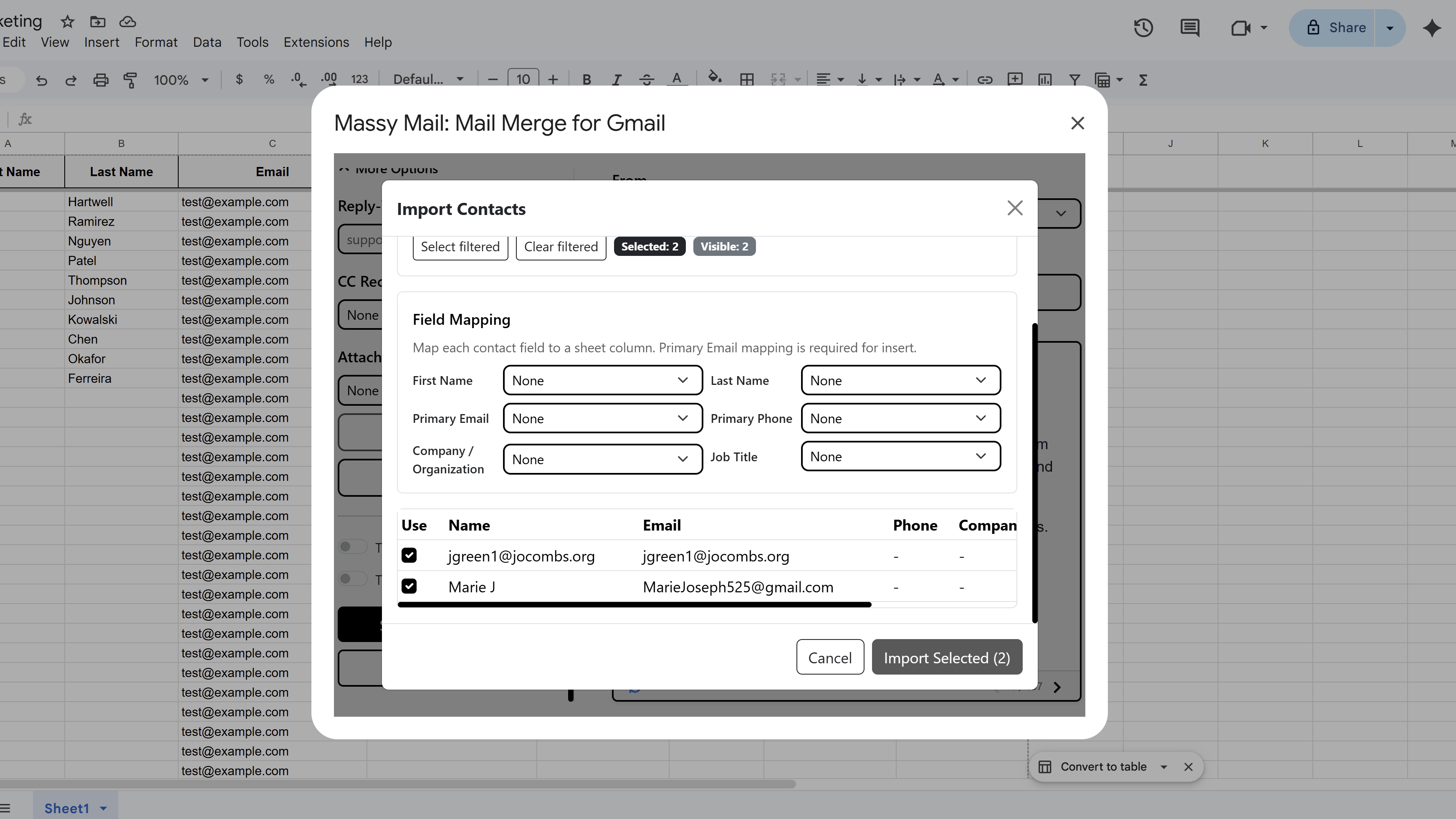
With your filtered list visible, select the contacts you want to import using the checkboxes next to each row. You can:
- Check individual contacts one by one
- Use Select All to select every contact currently visible (after filtering)
- Deselect individual contacts from your selection
The total number of selected contacts is shown at the bottom of the modal, so you can confirm you have the right count before proceeding.
Map Contact Fields to Sheet Columns
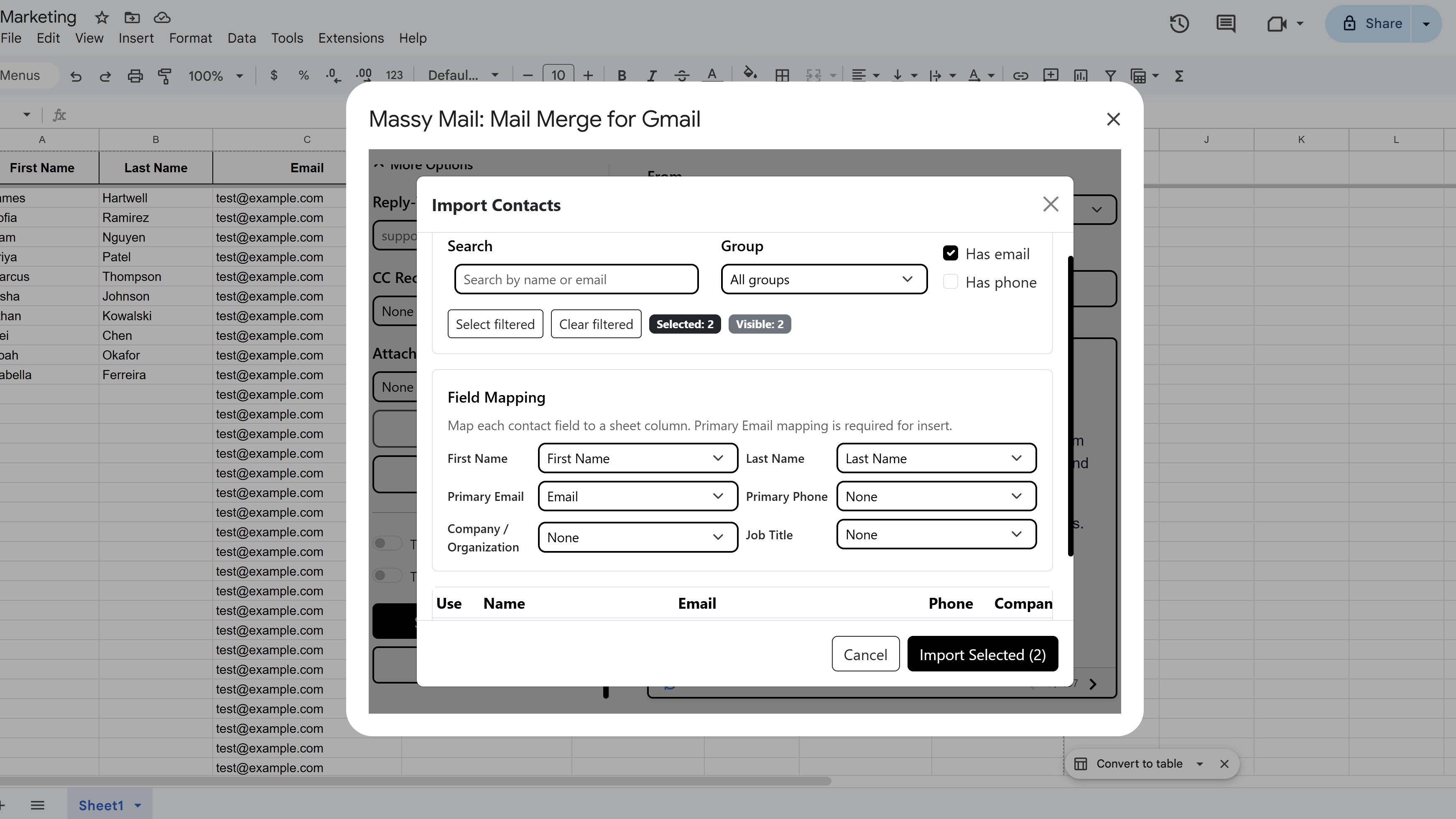
After selecting your contacts, MassyMail will prompt you to map contact fields to columns in your Google Sheet. The following fields are available to import:
- First Name
- Last Name
- Primary Email
- Primary Phone
- Company / Organization
- Job Title
For each field, you'll select which column in your sheet it should write to. If a column doesn't exist yet, you can create it during this step. Fields you don't need for this campaign can be left unmapped and won't be imported.
Run the Import
Once your field mapping is complete, click Import. MassyMail will process each selected contact and write the data to your sheet using the following rules:
- New contacts (email not already in the sheet) are appended as new rows.
- Existing contacts (email already exists in the sheet) are updated — but only in cells that are currently blank. Existing data is never overwritten.
- Duplicate emails within the import batch itself are deduplicated automatically — only the first occurrence is imported.
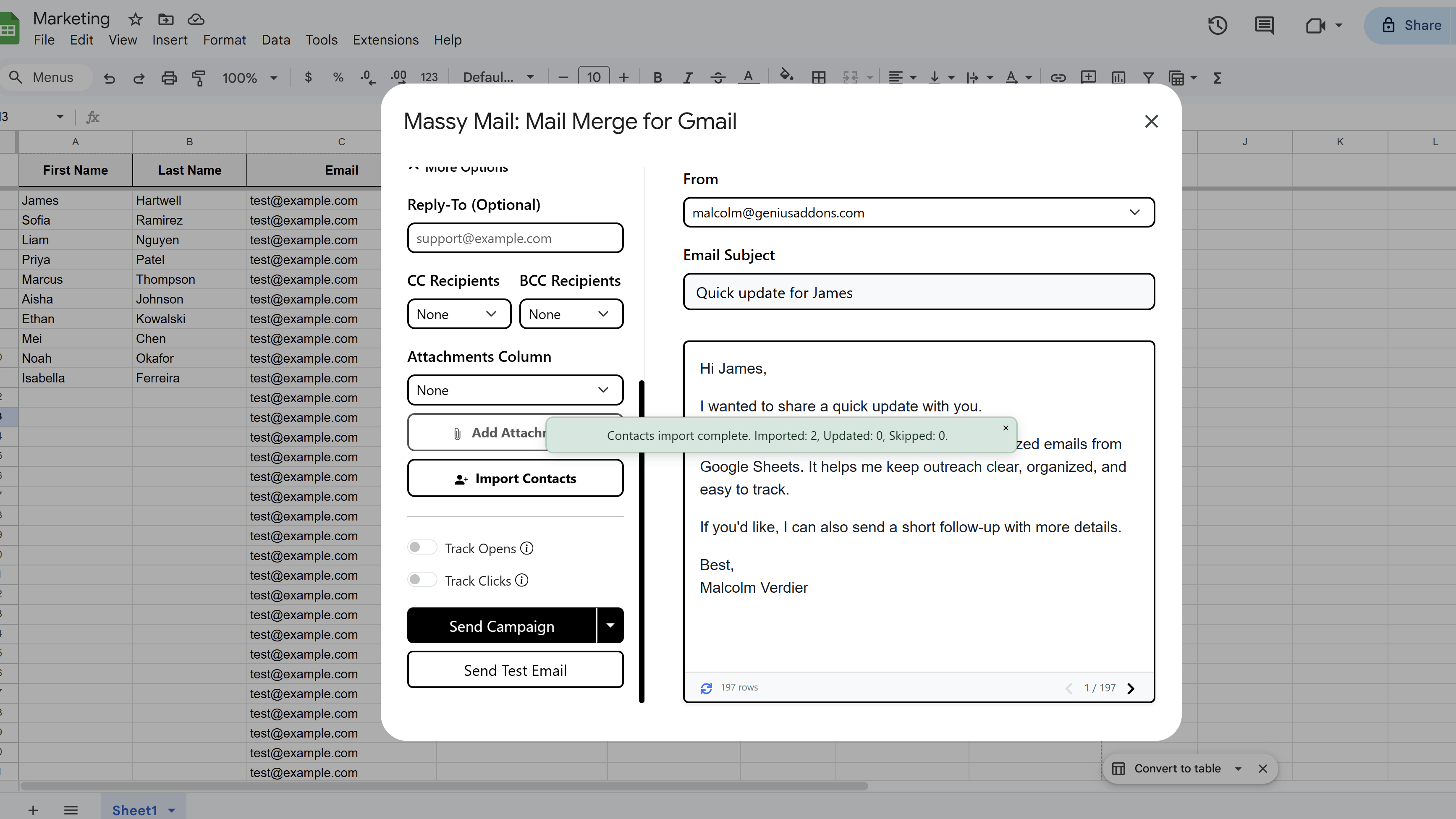
When the import finishes, MassyMail will display a summary showing how many contacts were added, updated, and skipped. Your sheet is now ready for your mail merge campaign.
Tips and Best Practices
- Always filter for "Has email" before selecting — importing contacts without email addresses will add rows to your sheet that MassyMail will skip (or fail on) during a campaign send.
- Use Google Contacts labels to organize your contacts into lists (e.g. "Newsletter Subscribers") before importing. This makes filtering in MassyMail much faster.
- Run a small test import first (select 5–10 contacts) to confirm your field mapping is correct before importing your full list.
Common Pitfalls to Avoid
- Don't import far more contacts than you can send to in one campaign cycle — Gmail has daily sending limits, so only import what you plan to use in the near term.
- MassyMail won't overwrite existing non-blank cells during an import update — if you need to refresh data for existing contacts, clear those columns first before re-importing.
For a complete walkthrough of Gmail mail merge — including templates, scheduling, and tracking — see our Gmail Mail Merge: The Complete Guide. New to MassyMail? Install it free from the Google Workspace Marketplace.
MassyMail: Mail Merge for Gmail
Send personalized bulk email campaigns directly from Gmail using your Google Sheets data. Schedule campaigns, track opens and clicks, and manage templates without leaving Google Workspace.
- Send up to 1,500 emails/day
- Merge fields & personalization
- Scheduled email campaigns
- Email open & click tracking
- Reusable email templates
- Built right into Google Sheets