How to Choose a Theme in BeeForm
Learn how to browse and apply professionally designed themes in BeeForm from Global, Personal, and Team collections.
4 min read
Updated 1/26/2026
- Open BeeForm Designer
- Click the Images Icon
- Browse Theme Gallery
- Preview Themes
- Apply Your Chosen Theme
Open BeeForm Designer
In your Google Form, click the Add-ons icon (puzzle piece) in the top toolbar. Select BeeForm from the dropdown menu, then click 🚀 Open App. The BeeForm Designer will launch in a popup window.
Click the Images Icon
Once the Designer is open, look at the toolbar at the top of the window. Find
and click the Images icon (usually looks like a photo or
gallery icon). This will open the Theme Gallery sidebar.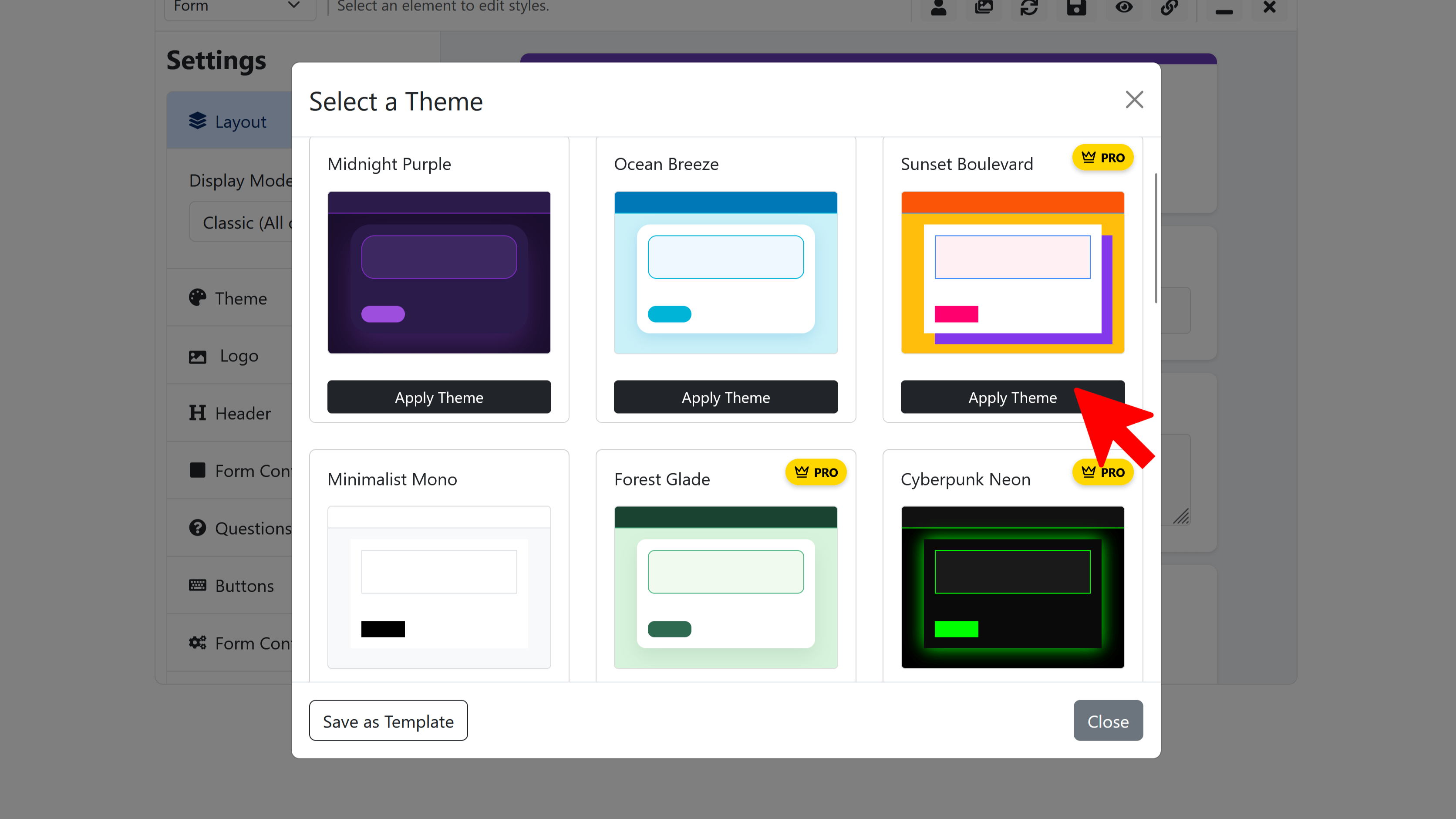
Browse Theme Gallery
The Theme Gallery displays professionally designed templates organized into three sections: Global Themes (default themes available to everyone), Personal (your saved custom themes), and Team (shared themes for your organization). Each theme shows a preview thumbnail so you can see the design style at a glance.
Preview Themes
Click on any theme to instantly apply it to your form. The preview area will immediately update to show how your form questions appear with that theme's colors, fonts, and styling. You can click through multiple themes to compare different looks and find the one that works best for your needs.
Apply Your Chosen Theme
Once you've found a theme you like by clicking through the options, it's already applied to your form in the preview. Don't worry - themes are fully customizable, so you can adjust individual elements like colors, fonts, and backgrounds after applying. Remember to click Save to keep your theme choice.
Tips and Best Practices
- Themes are great starting points - you can always customize colors, fonts, and other elements after applying a theme.
- Choose themes that match your brand's personality: professional themes for business, playful themes for events or education.
- You can switch themes at any time without losing your form questions or content.
Common Pitfalls to Avoid
- Don't forget to save your design after applying a theme - click the Save icon in the toolbar.
- Themes override custom colors you may have set previously, so apply themes before making detailed customizations.
External Resources
Try Free
BeeForm: Pretty Forms Designer
Transform your Google Forms into beautiful, professional, and highly customizable web forms.
- Professional preset themes
- Complete design customization
- Wizard mode for multi-step forms
- Response limits & notifications
- Easy-to-use visual designer
- Works directly in Google Forms