How to Install BeeForm
Step-by-step guide to installing the BeeForm add-on from Google Workspace Marketplace and setting up permissions.
Open Any Google Form
Navigate to Google Forms by going to forms.google.com. You can either create a new form by clicking the + Blank button, or open an existing form from your list of forms. BeeForm will work with any Google Form, new or existing.
Access the Add-ons Menu
Once your form is open, look for the More menu (three
vertical dots) in the top-right corner of the Google Forms interface. Click on
it to reveal a dropdown menu, then select
Get add-ons.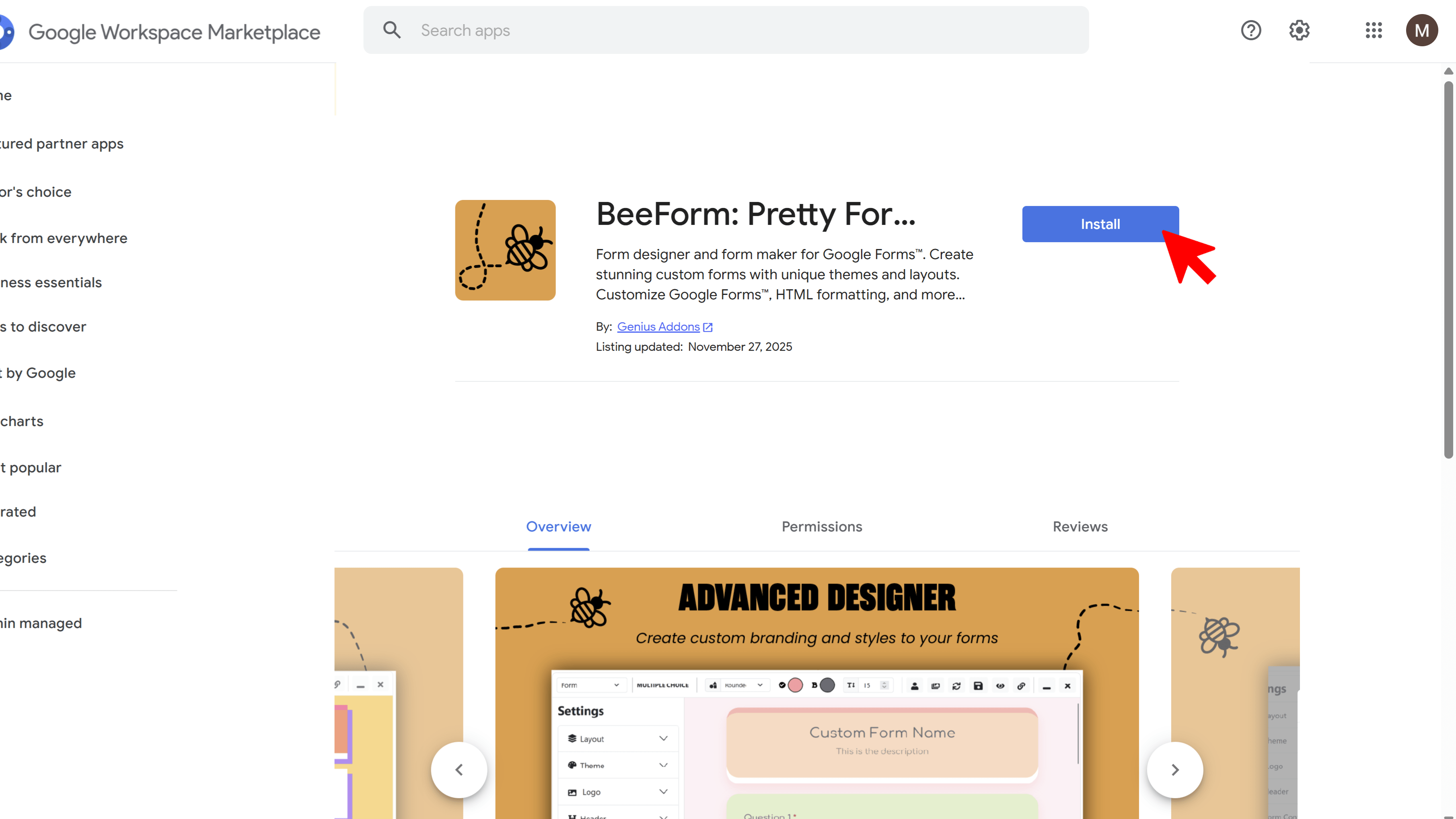
Search for BeeForm
The Google Workspace Marketplace will open in a new window. In the search bar at the top, type "BeeForm" and press Enter. The BeeForm add-on should appear in the search results with its logo and description.
Install BeeForm
Click on the BeeForm add-on from the search results. You'll see details about the add-on including its features and reviews. Click the blue Install button to begin the installation process.
Grant Permissions
A permission dialog will appear asking you to grant BeeForm access to your Google Forms and related data. Review the permissions carefully, then click Allow or Continue. Once permissions are granted, BeeForm will be installed and ready to use across all your Google Forms.
Tips and Best Practices
- You only need to install BeeForm once - it will be available for all your Google Forms after installation.
- The add-on appears in your forms toolbar after installation, so you don't need to reinstall it for each form.
- Make sure you're signed in with the correct Google account before installing if you manage multiple accounts.
Common Pitfalls to Avoid
- Don't skip the permissions step - BeeForm needs these permissions to save your design settings and access your form structure.
- If you don't see BeeForm after installation, try refreshing your browser or reopening the Google Form.
External Resources
BeeForm: Pretty Forms Designer
Transform your Google Forms into beautiful, professional, and highly customizable web forms.
- Professional preset themes
- Complete design customization
- Wizard mode for multi-step forms
- Response limits & notifications
- Easy-to-use visual designer
- Works directly in Google Forms