How to Enable Wizard Mode in BeeForm
Set up step-by-step form navigation with Wizard Mode for better user experience and higher completion rates.
- Open BeeForm Designer
- Find Layout Settings
- Select Wizard Mode
- Customize Progress Bar
- Save Your Changes
Open BeeForm Designer
Launch your Google Form and open the BeeForm Designer by clicking the Add-ons icon, selecting BeeForm, and clicking 🚀 Open App. The Designer will open with your form preview.
Find Layout Settings
In the Settings Panel on the left side of the Designer, scroll down to find
the Layout section. This controls how your form questions are
displayed to respondents. Click on it to expand the layout options.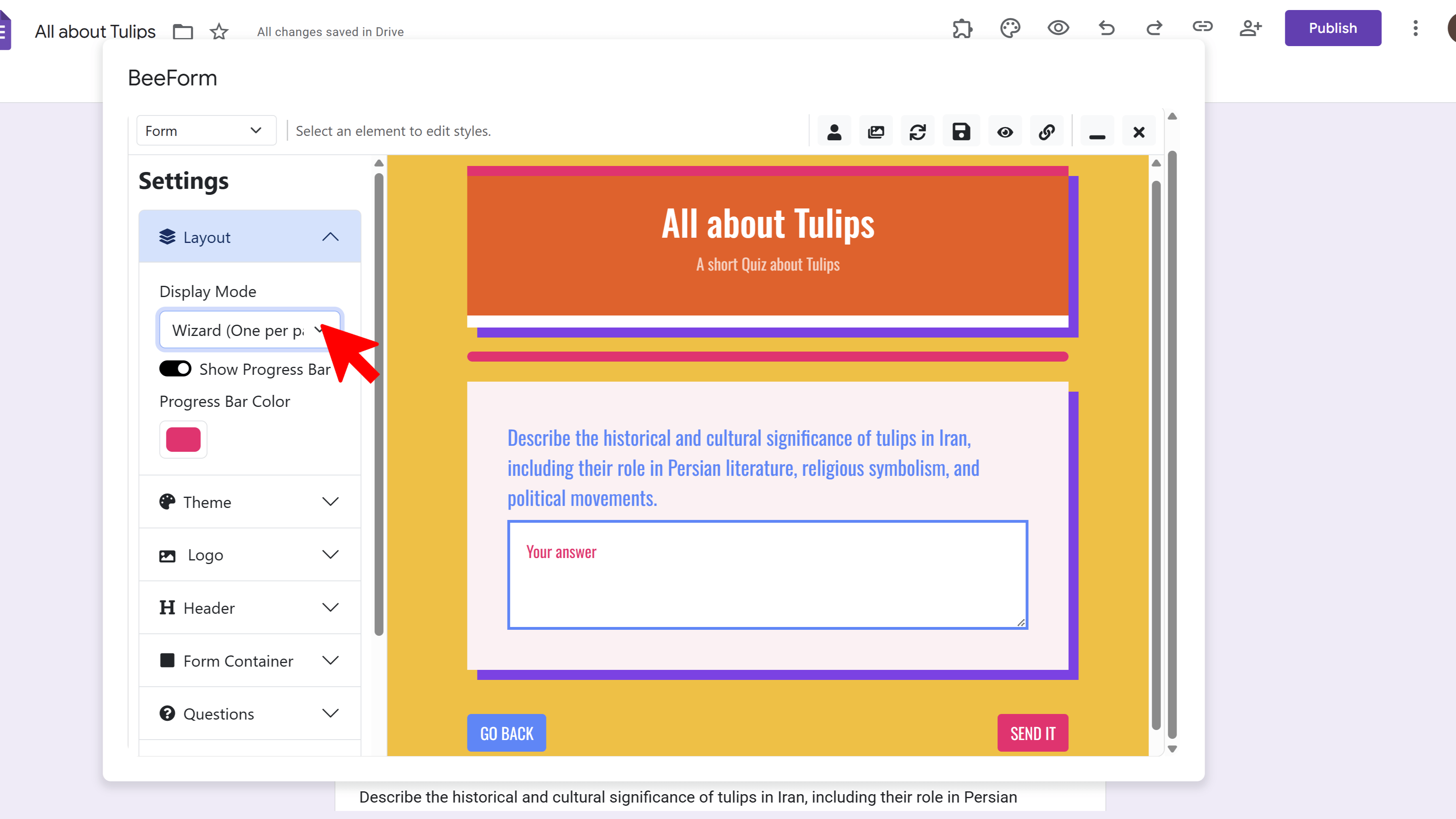
Select Wizard Mode
In the Layout settings, you'll see two options: Classic Mode (all questions on one page) and Wizard Mode (one question at a time). Click on Wizard Mode to enable step-by-step form navigation. The preview will immediately update to show one question at a time.
Customize Progress Bar
With Wizard Mode enabled, you'll see additional options for the progress bar. You can choose to display question numbers (e.g., "Question 3 of 10"), customize the progress bar color to match your brand, and set the position of navigation buttons (Next, Back, Skip).
Save Your Changes
Once you're satisfied with your Wizard Mode setup, click the Save icon (floppy disk) in the toolbar at the top. Your form will now display one question at a time when respondents fill it out, making it easier to complete especially on mobile devices.
Tips and Best Practices
- Wizard Mode is ideal for long forms (10+ questions) as it reduces cognitive load and improves completion rates.
- Use Wizard Mode for multi-step applications, detailed surveys, or complex registration forms.
- The progress bar helps users understand how much of the form remains, reducing form abandonment.
Common Pitfalls to Avoid
- Don't use Wizard Mode for very short forms (3-5 questions) - Classic Mode works better for quick forms.
- Remember that Wizard Mode adds Next/Back buttons, so ensure your button styling is clear and visible.
BeeForm: Pretty Forms Designer
Transform your Google Forms into beautiful, professional, and highly customizable web forms.
- Professional preset themes
- Complete design customization
- Wizard mode for multi-step forms
- Response limits & notifications
- Easy-to-use visual designer
- Works directly in Google Forms