How to Set Response Limits in BeeForm
Control the maximum number of form submissions with response limits, perfect for events and registrations.
- Open BeeForm Designer
- Navigate to Response Limits
- Enable Response Limit
- Set Maximum Responses
- Customize Closed Message
Open BeeForm Designer
In your Google Form, click the Add-ons icon (puzzle piece), select BeeForm, and click 🚀 Open App to launch the Designer interface.
Navigate to Response Limits
In the Settings Panel on the left side, scroll down to find the
Response Limits section. Click on it to expand and view the
response limit options.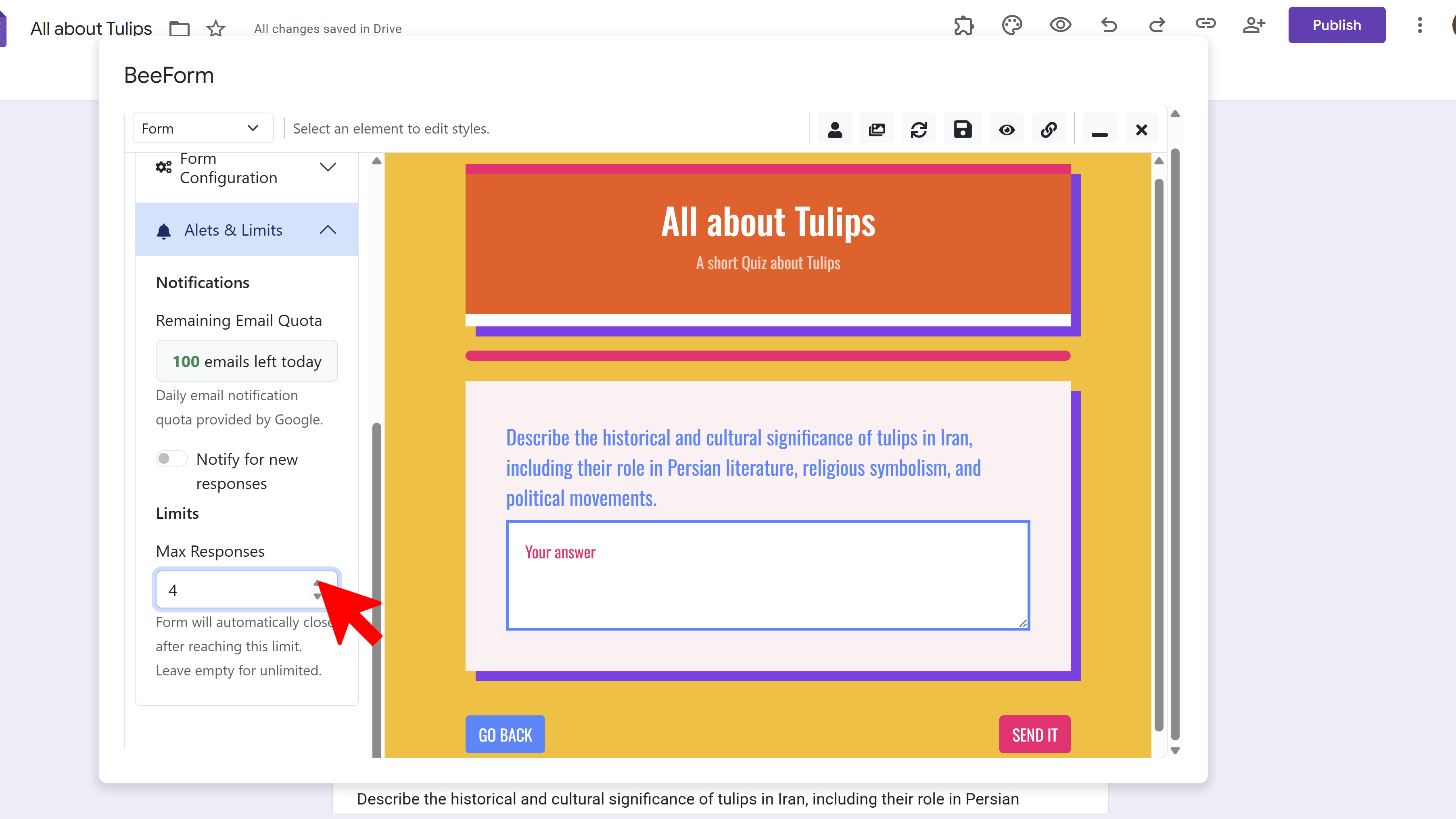
Enable Response Limit
You'll see a toggle switch labeled Enable Response Limit. Click the toggle to turn it ON. Once enabled, additional fields will appear where you can configure your response limit settings.
Set Maximum Responses
In the Max Responses field, enter the maximum number of responses you want to accept. For example, enter "50" if you want to limit registrations to the first 50 people, or "100" for 100 responses. Once this number is reached, the form will automatically close.
Customize Closed Message
Scroll down to the Form Closed Page settings. Here you can customize the message that appears when someone tries to access your form after the response limit has been reached. Write a helpful message like "Registration is now closed. Thank you for your interest!" Then click Save in the toolbar.
Tips and Best Practices
- Use response limits for limited-capacity events, exclusive offers, or first-come-first-served opportunities.
- Set your limit slightly higher than your actual capacity to account for no-shows or cancellations.
- Clearly communicate the limited availability in your form description so respondents understand the urgency.
Common Pitfalls to Avoid
- Don't forget to customize your "Form Closed" message - the default message may not provide enough context.
- Remember that you can manually re-open the form or increase the limit later if needed by editing the settings.
- Test your form before sharing widely to ensure the response limit is working as expected.
External Resources
BeeForm: Pretty Forms Designer
Transform your Google Forms into beautiful, professional, and highly customizable web forms.
- Professional preset themes
- Complete design customization
- Wizard mode for multi-step forms
- Response limits & notifications
- Easy-to-use visual designer
- Works directly in Google Forms