How to Add a Logo to Your QR Code in CrabQR
Learn how to add your company logo or brand image to QR codes with CrabQR. Create professional branded QR codes with custom logos for marketing and business use.
Access Style Settings
Open the QR Code Style Designer by creating a new QR code or editing an existing one. In the style customization panel, scroll down to find the Logo section. This section allows you to overlay your company logo or brand image directly onto your QR code, creating a professional, branded appearance.
Enter Logo URL
In the Logo section, you'll see a Logo URL input field. Enter
the complete URL of your logo image (e.g., "https://yourdomain.com/logo.png").
The logo must be hosted online and accessible via a public URL. Supported
formats include PNG (recommended for transparent backgrounds), JPG, and SVG.
CrabQR will fetch and display your logo in the QR code preview.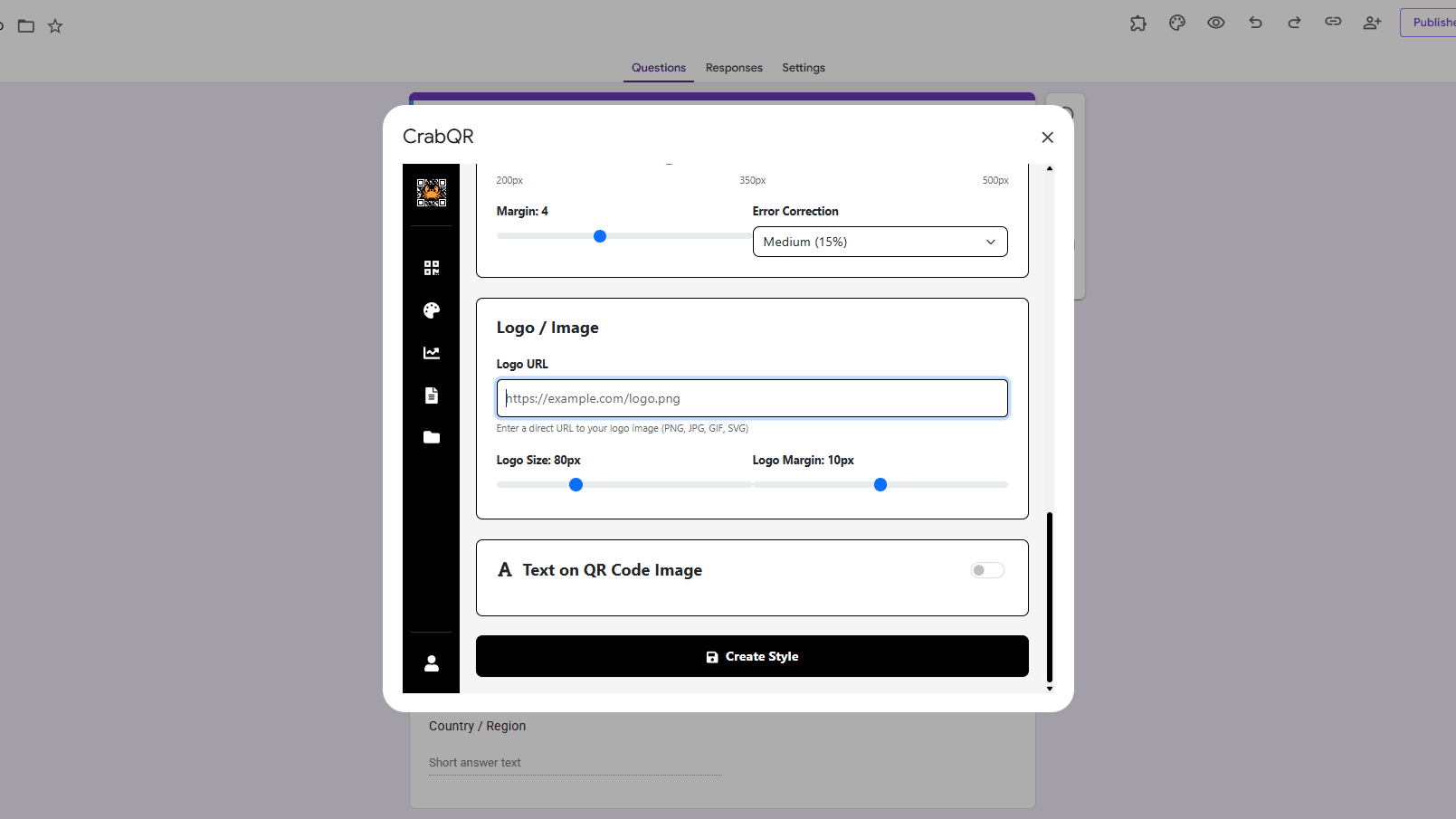
Adjust Logo Size
Below the logo URL field, use the Logo Size slider to control
how large your logo appears in the QR code. The slider typically ranges from
50 to 150 pixels. Start with a moderate size (around 80-100 pixels) and adjust
based on your preview. A logo that's too large can interfere with scanning,
while one that's too small may not be visible enough to provide branding
value.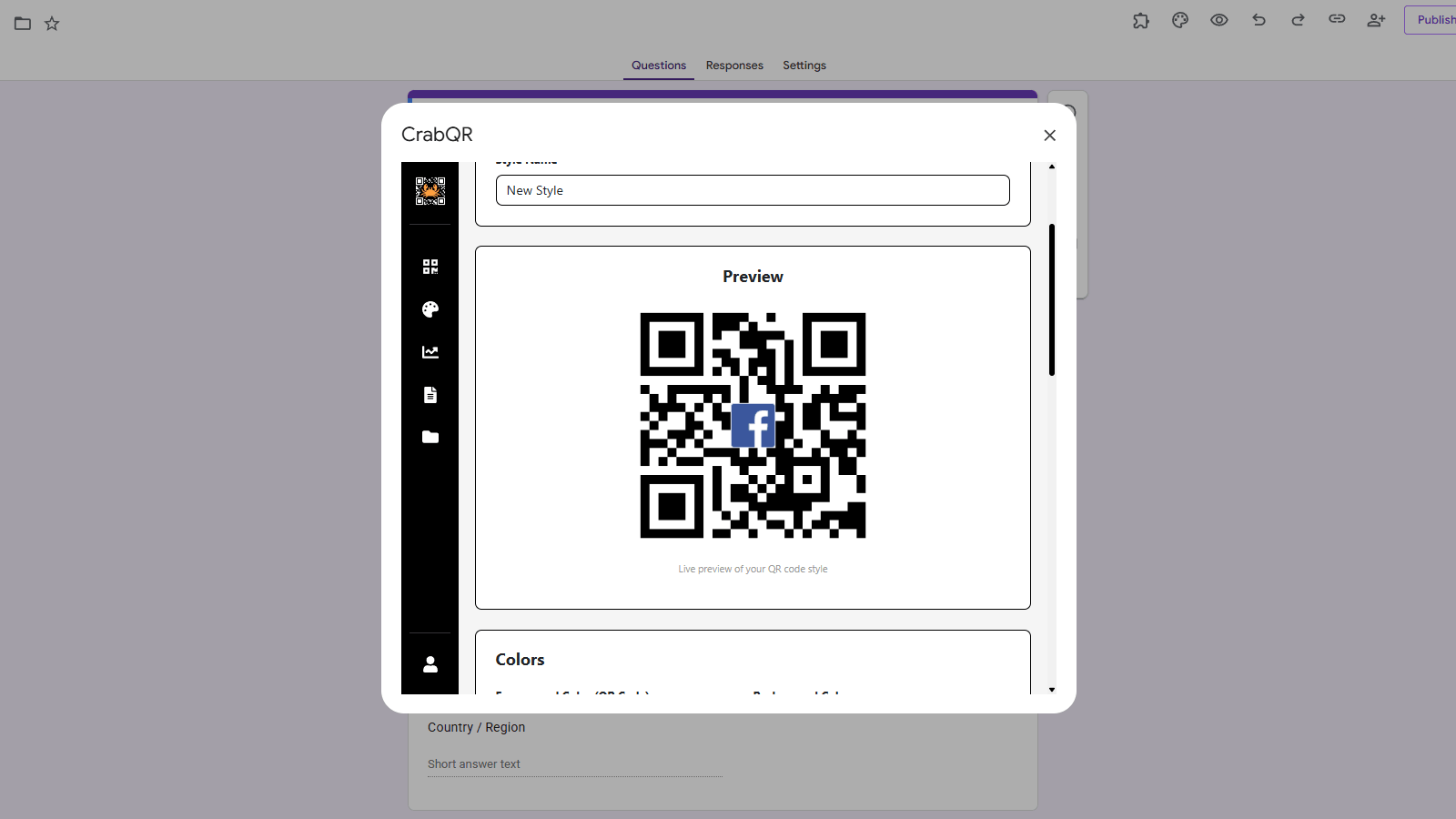
Set Logo Margin
The Logo Margin slider controls the white space (or background color) around your logo. This margin helps separate the logo from the QR code pattern, improving both aesthetics and scannability. Adjust the margin between 0 and 20 pixels. A margin of 5-10 pixels typically works well - enough to create separation without making the logo area too large. CrabQR automatically hides QR code dots behind the logo for cleaner appearance.
Preview and Save
As you adjust logo settings, the preview updates in real-time showing your branded QR code. Before saving, test scan the QR code using your smartphone camera to ensure it still works reliably with the logo. If scanning fails, try reducing the logo size or increasing error correction to High (H). Once satisfied, save your style as a template so you can easily apply this branded look to all your QR codes.
Tips and Best Practices
- Use PNG images with transparent backgrounds for the most professional appearance - the QR code background will show through.
- Keep logo file sizes under 500KB and use optimized images for faster loading times in the designer.
- Always set error correction to High (H) when using logos - this ensures the QR code remains scannable even with the logo overlay.
- Square or circular logos work best in QR codes - very wide or tall logos may not fit well in the center space.
Common Pitfalls to Avoid
- Don't use logos that are too large (over 30% of the QR code area) - this can make the code unscannable.
- Avoid using logos with very fine details or small text - they become hard to see at small QR code sizes.
- Don't use white logos on QR codes with white backgrounds, or black logos on black backgrounds - ensure contrast.
- Make sure your logo URL is https (secure) and the image is publicly accessible - private images won't display.
CrabQR: QR Code Generator & Analytics
Create, customize, and track QR codes with advanced styling, landing pages, and comprehensive analytics. Perfect for marketing and event management.
- Dynamic QR code generation
- Advanced styling & customization
- Custom landing pages
- Real-time scan analytics
- Bulk QR code creation
- Built right into Google Workspace