How to Create Bulk QR Codes with CrabQR
Learn how to generate multiple QR codes at once using CrabQR's bulk creation feature. Import from CSV, Google Sheets, or paste multiple URLs to create up to 1000 QR codes simultaneously.
- Access Bulk Creation
- Choose Data Source
- Select Sheet Range
- Configure Shared Settings
- Generate and Download
Access Bulk Creation
Note: Bulk creation is only available when using CrabQR in Google Sheets. Open a Google Sheets document and launch CrabQR from the Extensions menu. In the CrabQR sidebar, look for the Bulk Create button or option, often located near the regular "Create QR Code" button or in a separate section of the interface. Click it to open the bulk creation wizard. This feature is perfect when you need to generate multiple QR codes at once for events, product catalogs, name badges, or marketing campaigns. CrabQR supports creating up to 50 QR codes in a single batch operation.
Choose Data Source
The bulk creation wizard will prompt you to select data from your Google
Sheet. Click the
Select Range button to choose cells from your current
spreadsheet. This allows you to select a range of cells containing your QR
code names and URLs directly from the sheet you're working in, making bulk
creation quick and convenient.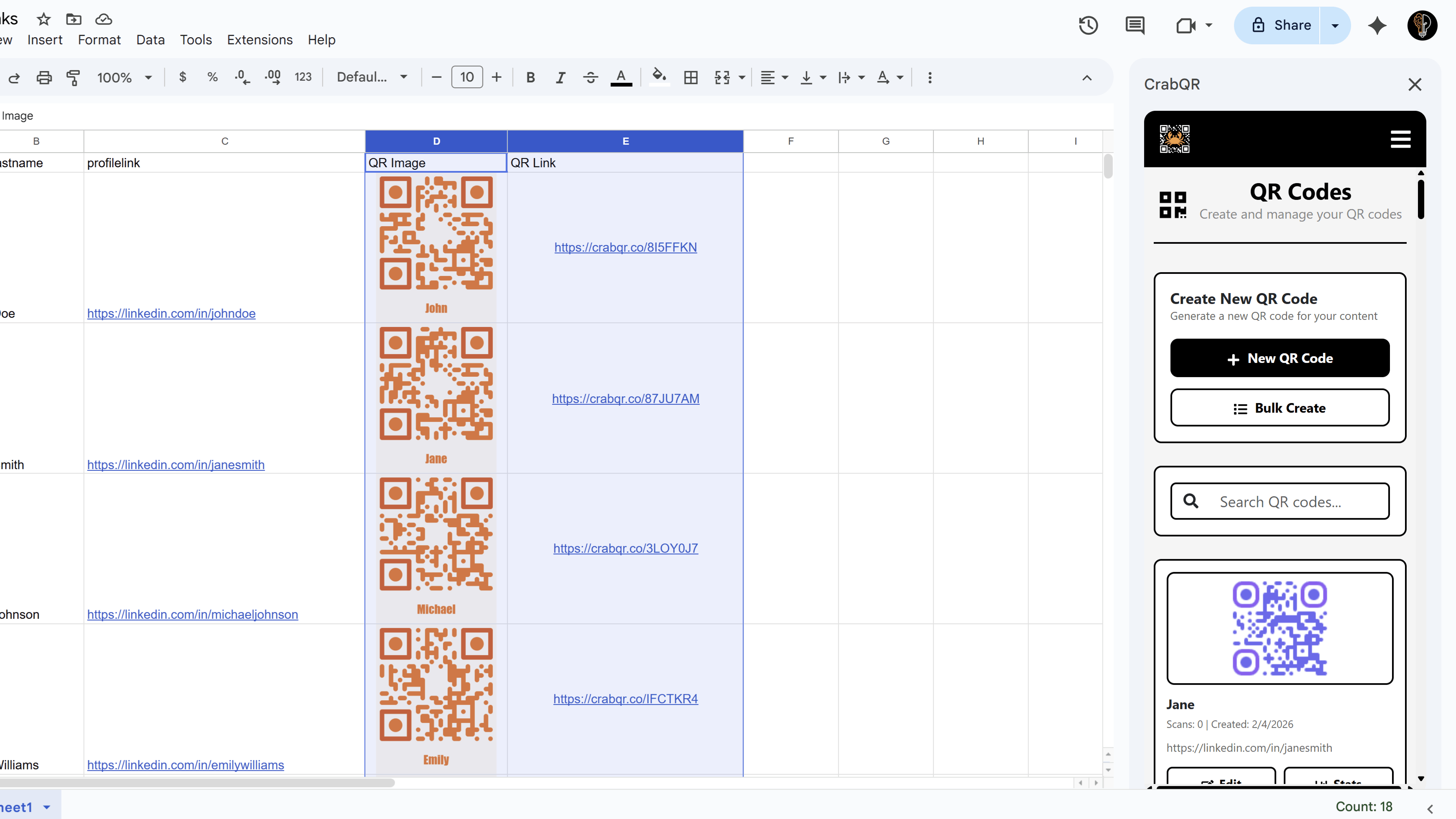
Select Sheet Range
After choosing "From Sheet Range", click the
Select Range button. Your cursor will change, indicating you
can now select cells in your Google Sheet. Click and drag to highlight the
range containing your data. The first column should contain QR code names, and
the second column should contain the target URLs. For example, select cells
A2:B25 if you have headers in row 1 and 24 data rows. The selection will be
captured and displayed in the bulk creation form.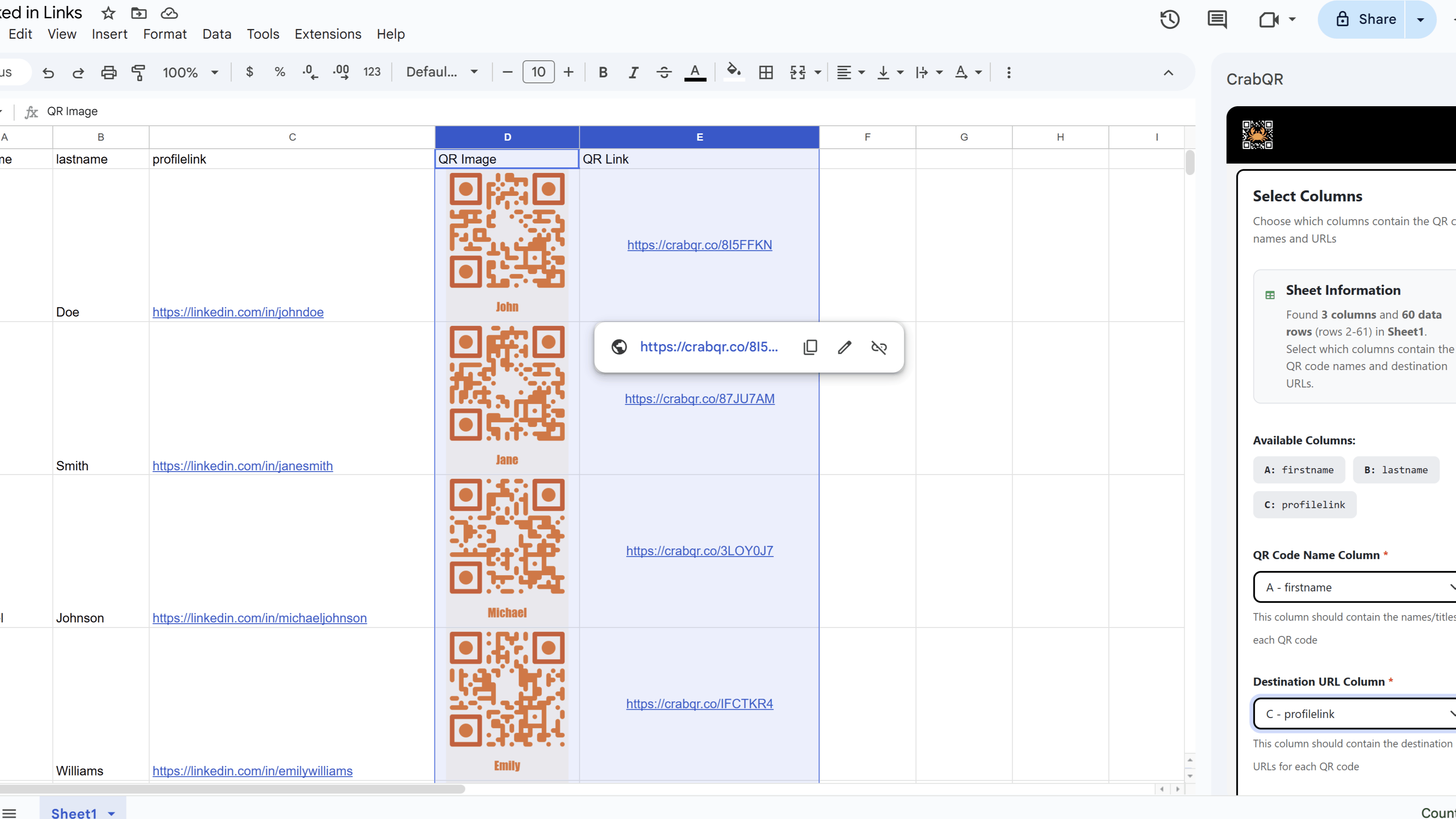
Configure Shared Settings
After selecting your data range, configure settings that will apply to all generated QR codes. Choose a Style from your saved templates - all QR codes in this batch will use the same visual design. Select a Landing Page if you want one (or leave as "None"). Choose a Folder to organize these QR codes together. You can also set a shared Group ID which links all these codes, making them easy to find and manage as a set later.
Generate and Download
Click the Generate Codes button to start the bulk creation process. CrabQR will validate each row, generate unique 7-character IDs for each QR code, create tracking URLs, and save them to your account. The system will process all your QR codes and save them to your account. Once complete, you'll see a success message and you can navigate to Management to see your new QR codes in the folder you specified. All codes are automatically saved to your account and ready to download individually.
Tips and Best Practices
- Prepare your spreadsheet data carefully - ensure all URLs are complete and properly formatted with https://
- Use descriptive names for bulk-generated QR codes to make them easy to identify later in your management panel.
- Create a dedicated folder for each bulk batch to keep related QR codes organized together.
- On the free plan, you can create up to 200 QR codes per month - upgrade to Pro for unlimited bulk generation.
- Test a small batch (3-5 codes) first to ensure your data format is correct before generating hundreds of codes.
Common Pitfalls to Avoid
- Don't include header rows in your selection - select only the data rows with names and URLs.
- Avoid generating bulk codes without organizing them into folders - you'll have difficulty finding specific codes later.
- Don't forget to check your subscription limits before bulk generating - ensure you have enough QR codes available in your plan.
- Remember that bulk generation counts toward both your monthly QR code limit and lifetime total.
CrabQR: QR Code Generator & Analytics
Create, customize, and track QR codes with advanced styling, landing pages, and comprehensive analytics. Perfect for marketing and event management.
- Dynamic QR code generation
- Advanced styling & customization
- Custom landing pages
- Real-time scan analytics
- Bulk QR code creation
- Built right into Google Workspace