How to Create Your First QR Code with CrabQR
Step-by-step guide to creating your first QR code with CrabQR. Learn how to input URLs, customize styles, and generate professional QR codes for your business or personal use.
4 min read
Updated 2/10/2026
Open CrabQR App
In your Google Sheets, Docs, or Forms document, click the
Extensions menu, select CrabQR, and click
Open to launch the CrabQR sidebar. The app will open on the
right side of your screen, showing your dashboard with any existing QR
codes.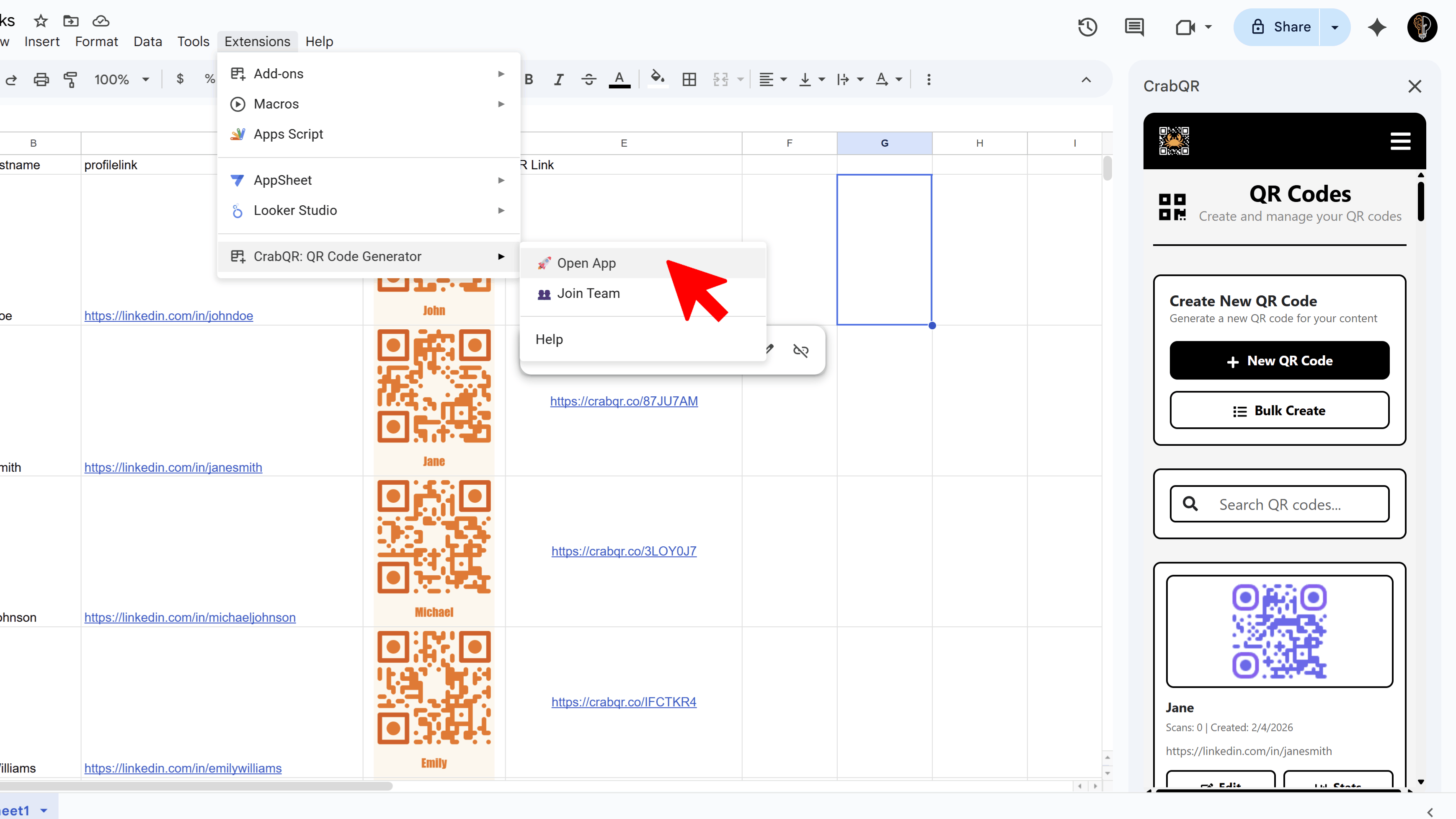
Click Create QR Code
In the CrabQR sidebar, look for the prominent
Create QR Code button, usually displayed at the top of the
interface. Click this button to open the QR code creation form. If this is
your first time using CrabQR, you may see a quick onboarding tour highlighting
key features.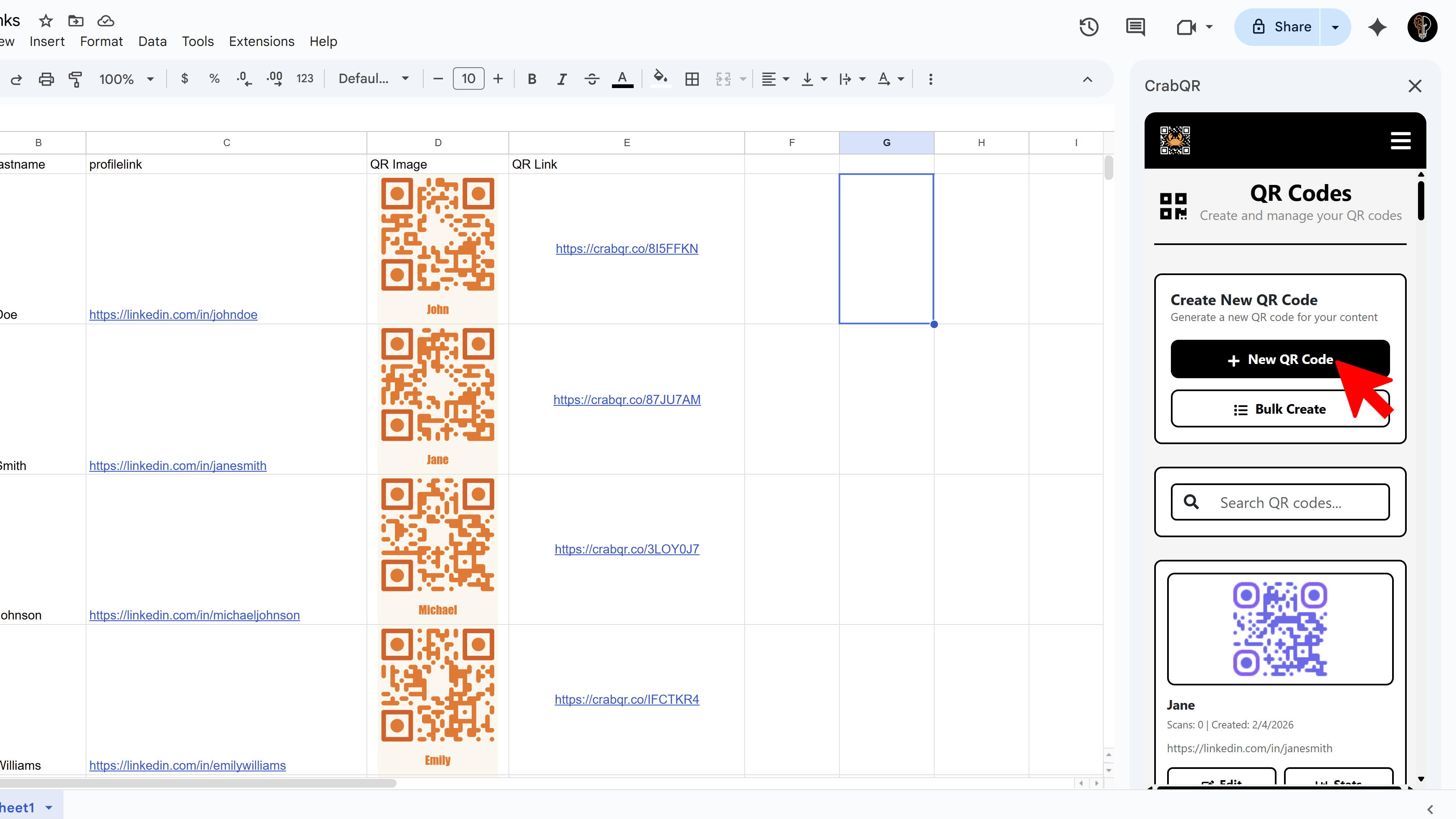
Enter URL and Name
In the creation form, you'll see several fields. Enter your target URL in the
URL field (e.g., "https://yourwebsite.com"). Give your QR
code a memorable name in the Name field (e.g., "Product Page"
or "Event Registration"). Optionally, add a description to help you identify
this QR code later. The form will validate your URL to ensure it's properly
formatted.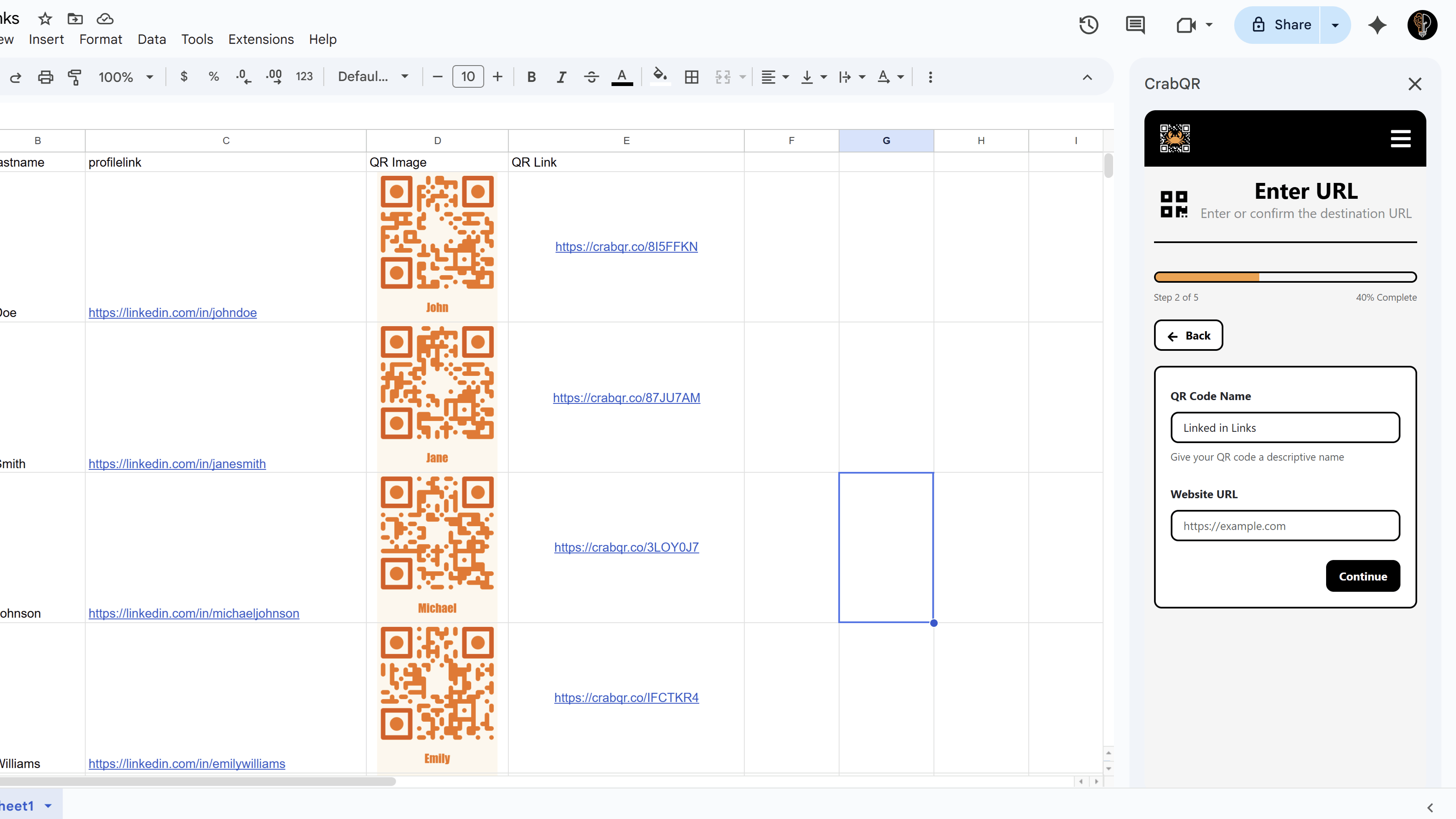
Create and Download Your QR Code
Once you're satisfied with your information, click the Create button at the bottom of the form. CrabQR will generate your QR code and save it to your account. After the QR code is created, you'll see a Download button appear. Click this button to download your QR code as a PNG file to your computer. Your QR code is now ready to print, share, or embed in your materials. You'll also see it appear in your QR code list for future management.
Tips and Best Practices
- Always test your QR code after creating it by scanning it with your smartphone to verify it redirects correctly.
- Use descriptive names for your QR codes so you can easily find them later when you have many codes.
- Your QR code gets a short URL (https://crabqr.co/XXXXXX) that you can track in analytics.
Common Pitfalls to Avoid
- Don't forget to include "https://" at the beginning of your URL - "www.example.com" won't work without it.
- Avoid using very long URLs directly - CrabQR creates short tracking URLs automatically.
- If your QR code download doesn't start, check your browser's pop-up blocker settings.
Try Free
CrabQR: QR Code Generator & Analytics
Create, customize, and track QR codes with advanced styling, landing pages, and comprehensive analytics. Perfect for marketing and event management.
- Dynamic QR code generation
- Advanced styling & customization
- Custom landing pages
- Real-time scan analytics
- Bulk QR code creation
- Built right into Google Workspace