How to Edit and Update QR Codes in CrabQR
Learn how to edit and update existing QR codes with CrabQR. Change URLs, update styling, modify security settings, and manage your QR codes without regenerating them.
- Find the QR Code to Edit
- Click Edit Button
- Update URL or Properties
- Change Style or Landing Page
- Save Changes
Find the QR Code to Edit
Navigate to the Management section in CrabQR to view your QR code library. Use the search bar to find specific codes by name or URL, browse through your folder structure, or scroll through the grid view. Each QR code card displays key information including the name, preview image, short URL, scan count, and creation date. Look for the Edit button (edit icon) on the QR code card you want to modify.
Click Edit Button
On the QR code card in your list, look for the Edit button,
represented by an edit icon. Click this button to open the QR code editing
form. The form will be pre-populated with all the current settings for this QR
code, including name, URL, description, style, landing page, folder
assignment, and security settings. You can modify any of these properties
while keeping the same QR code image and short URL.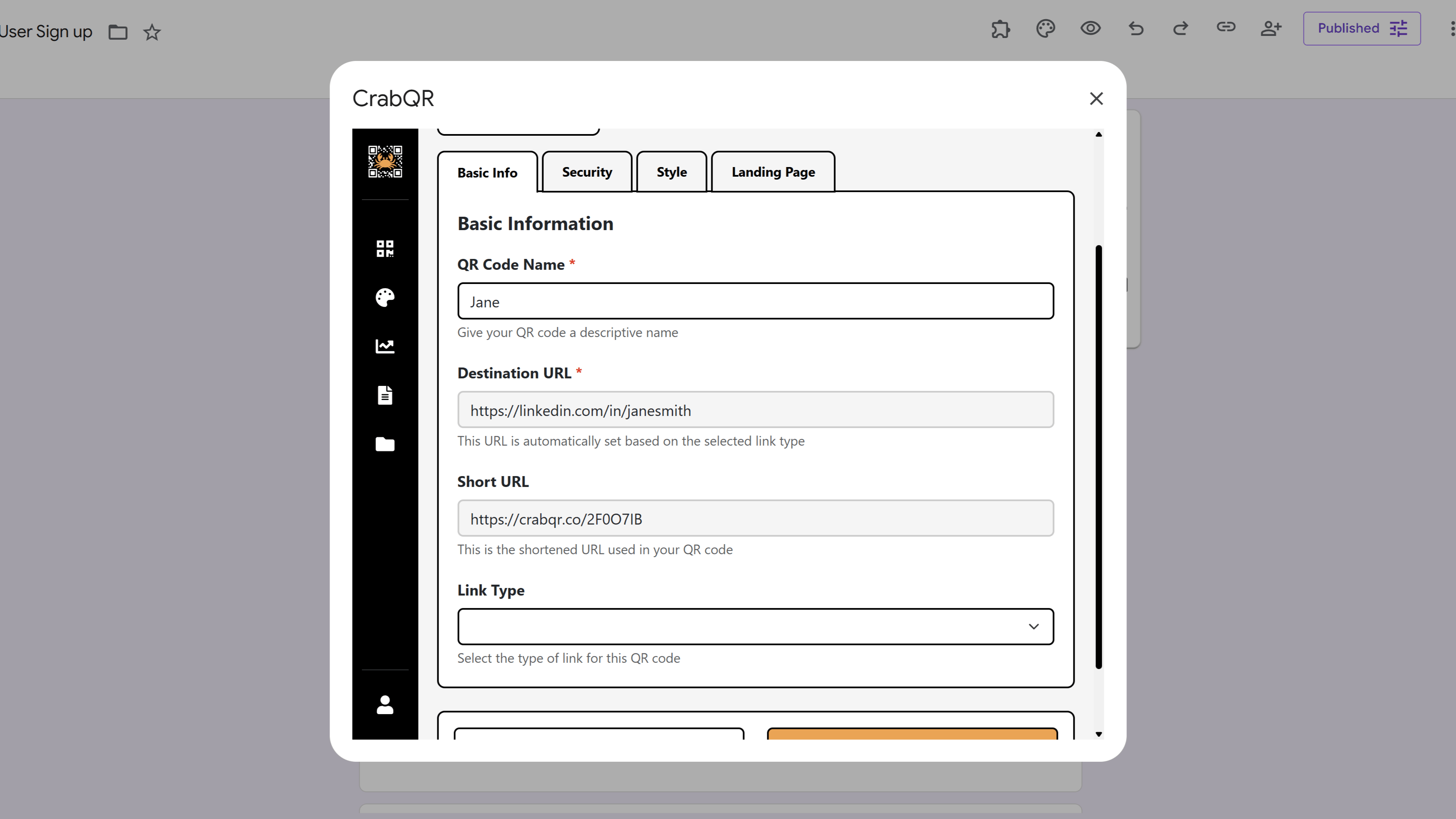
Update URL or Properties
One of CrabQR's most powerful features is the ability to change the
destination URL without changing the QR code image itself. In the edit form,
modify the URL field to point to a new destination. This
means you can update where your QR code leads without reprinting materials or
redistributing new codes. You can also update the Name to
better reflect the new destination, modify the Description,
change the Status (Active/Inactive), or move the code to a
different Folder. All existing scans remain tracked, and the
analytics history is preserved.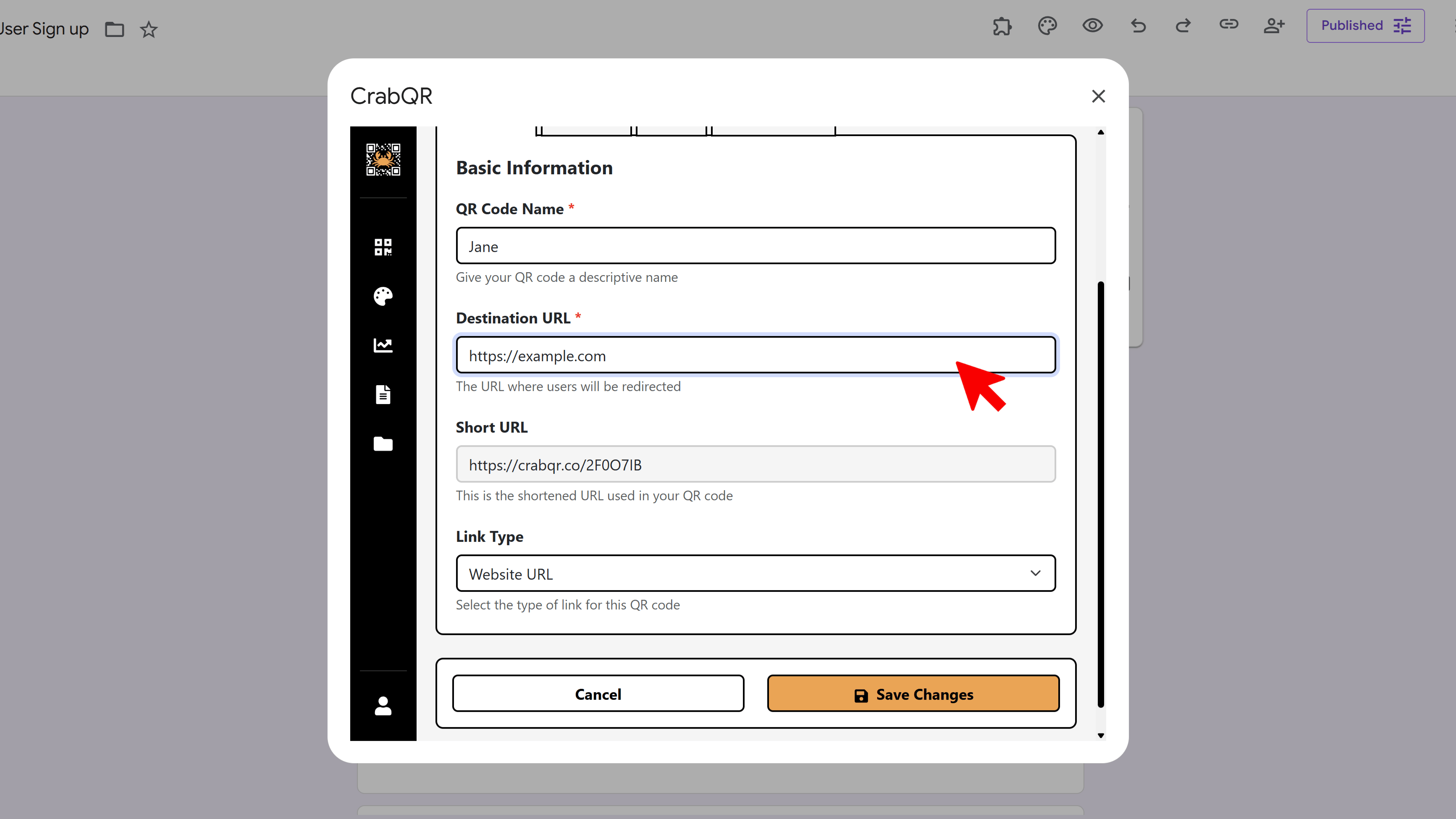
Change Style or Landing Page
You can also update the visual appearance or redirect behavior. In the Style tab, select a different style template to change colors, corner styles, or add/remove a logo. Note that changing the style doesn't automatically update QR codes you've already downloaded and printed - you'll need to download the new version. In the Landing Page tab, you can add, change, or remove a landing page that displays before the final redirect. This is useful for adding branding, announcements, or terms acceptance without changing the ultimate destination.
vc
Save Changes
After making your desired modifications, review all the changes in the form. Click the Save or Update button at the bottom of the form to apply your changes. CrabQR will update the QR code record in the database immediately. If you changed the URL, anyone scanning the existing QR code will now be redirected to the new destination - this happens instantly without any delay. If you updated the visual style, download the new QR code image to replace old printed materials. You'll see a success notification confirming your changes were saved.
Tips and Best Practices
- The ability to change URLs is extremely powerful - use it to fix broken links, update campaigns, or redirect to seasonal content.
- Keep a record of URL changes for important QR codes to maintain a history of what the code has pointed to over time.
- If you update the visual style, download and replace the QR code on printed materials during your next print run.
- Use the description field to document why you made changes - helpful for team collaboration and future reference.
- Test the QR code after making changes to ensure it redirects correctly and displays any new landing pages properly.
Common Pitfalls to Avoid
- Don't change the destination URL to something completely unrelated - this can confuse users who saved or bookmarked the code.
- Remember that visual style changes don't affect existing printed QR codes - only newly downloaded ones reflect changes.
- Avoid repeatedly changing URLs on high-traffic QR codes - some users may be mid-scan when you update.
- Don't forget to update marketing materials and documentation that reference the old URL or purpose of the QR code.
- If you accidentally change something critical, there's no automatic undo - keep notes on original settings for important codes.
CrabQR: QR Code Generator & Analytics
Create, customize, and track QR codes with advanced styling, landing pages, and comprehensive analytics. Perfect for marketing and event management.
- Dynamic QR code generation
- Advanced styling & customization
- Custom landing pages
- Real-time scan analytics
- Bulk QR code creation
- Built right into Google Workspace