How to Install CrabQR: Complete Setup Guide
Learn how to install CrabQR from the Google Workspace Marketplace and set it up in your Google Sheets, Docs, or Forms. Complete installation guide with step-by-step instructions.
Open Google Workspace
Navigate to Google Sheets by going to sheets.google.com, Google Docs at docs.google.com, or Google Forms at forms.google.com. You can either create a new document by clicking the + Blank button, or open an existing document from your list. CrabQR works seamlessly across all three Google Workspace applications.
Access the Add-ons Menu
Once your document is open, look for the Extensions menu in the top menu bar (or Add-ons in older versions). Click on it to reveal a dropdown menu, then select Get add-ons . 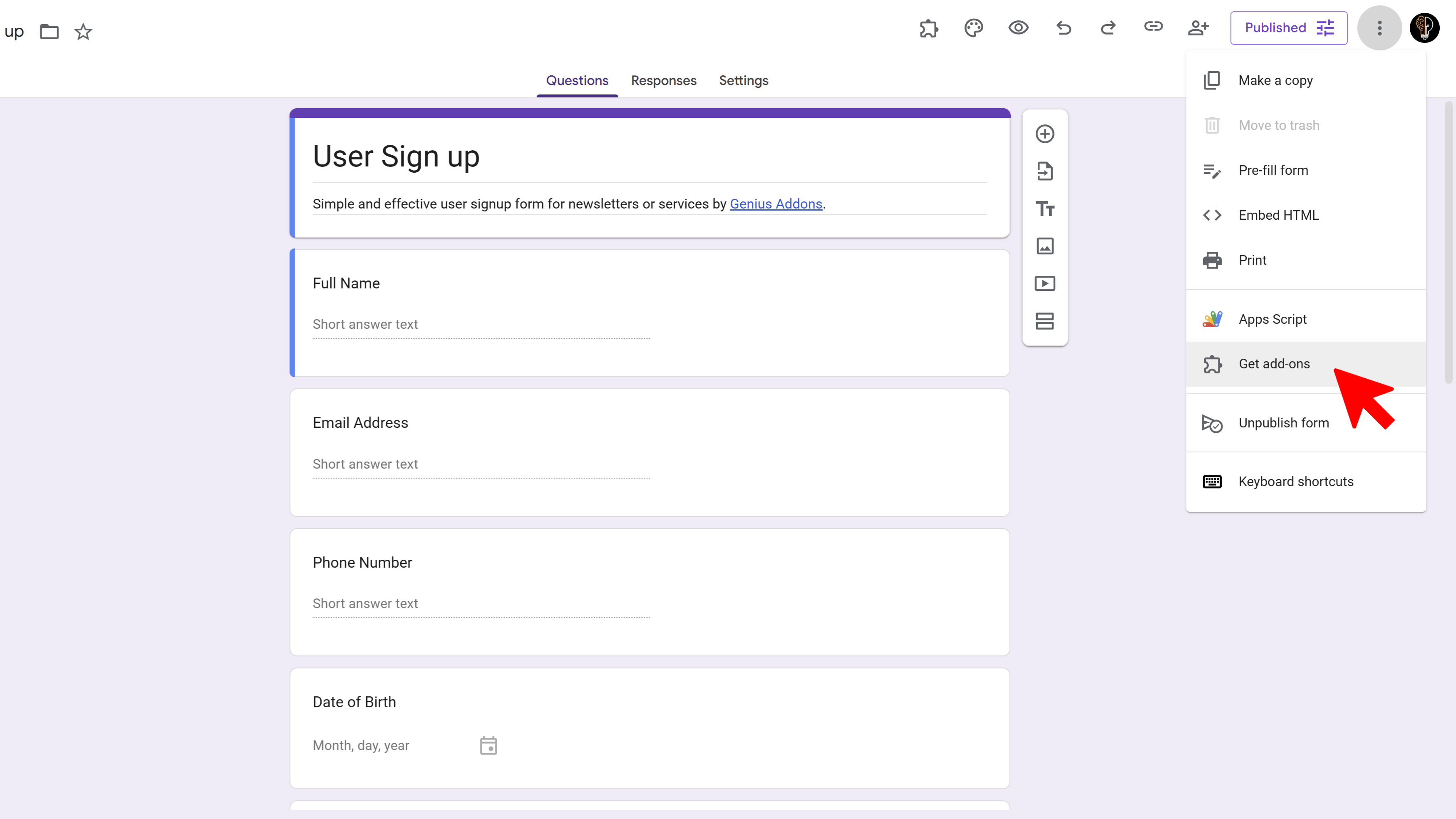
Search for CrabQR
The Google Workspace Marketplace will open in a new window. In the search bar at the top, type "CrabQR" and press Enter. The CrabQR add-on should appear in the search results with its logo and description showcasing QR code management capabilities. 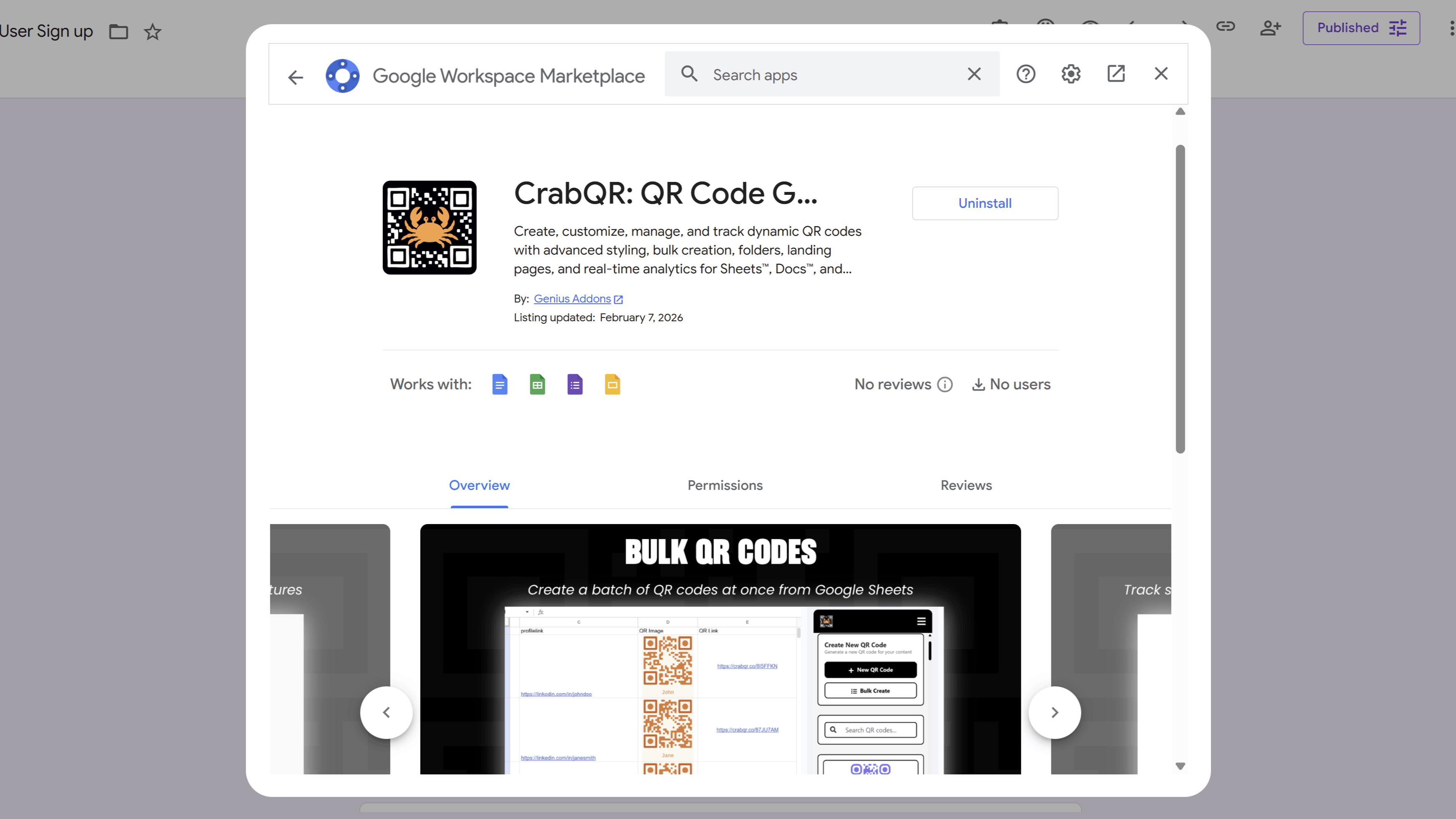
Install CrabQR
Click on the CrabQR add-on from the search results. You'll see details about the add-on including its features, pricing plans, and user reviews. Click the blue Install button to begin the installation process. A confirmation dialog will appear - click Continue to proceed.
Grant Permissions
A permission dialog will appear asking you to grant CrabQR access to your Google Workspace documents and related data. CrabQR needs these permissions to generate QR codes and save your settings. Review the permissions carefully, then click Allow . Once permissions are granted, CrabQR will be installed and ready to use across all your Google Sheets, Docs, and Forms.
Tips and Best Practices
- You only need to install CrabQR once - it will be available for all your Google Workspace documents after installation.
- The add-on appears in your Extensions menu after installation, so you don't need to reinstall it for each document.
- Make sure you're signed in with the correct Google account before installing if you manage multiple accounts.
- CrabQR offers a free plan with 2,000 scans per month and 200 QR codes - perfect for getting started.
Common Pitfalls to Avoid
- Don't skip the permissions step - CrabQR needs these permissions to save your QR codes and track analytics.
- If you don't see CrabQR after installation, try refreshing your browser or reopening the Google Workspace document.
- Make sure you have a stable internet connection during installation to avoid interruption.
CrabQR: Bulk QR Code Generator
Create custom branded QR codes with analytics tracking. Generate static and dynamic QR codes with custom designs, logos, and colors. Track scans in real-time with detailed analytics.
- Bulk QR code generation
- Custom styles, logos & colors
- Real-time scan analytics
- Landing page builder
- Folder & template management
- Google Sheets integration