Create Time-Based Schedules
Automate your Google Forms with time-based scheduling in Termi. Learn how to automatically open and close forms at specific dates and times, perfect for recurring surveys, application deadlines, and scheduled registration windows.
Open Termi Sidebar
In your Google Form, navigate to Extensions → Termi to launch the add-on sidebar.
Click Scheduler
On the Termi home screen, click Scheduler. This opens the
Time-Based Scheduler interface where you can automatically open and close your
form at specific dates and times.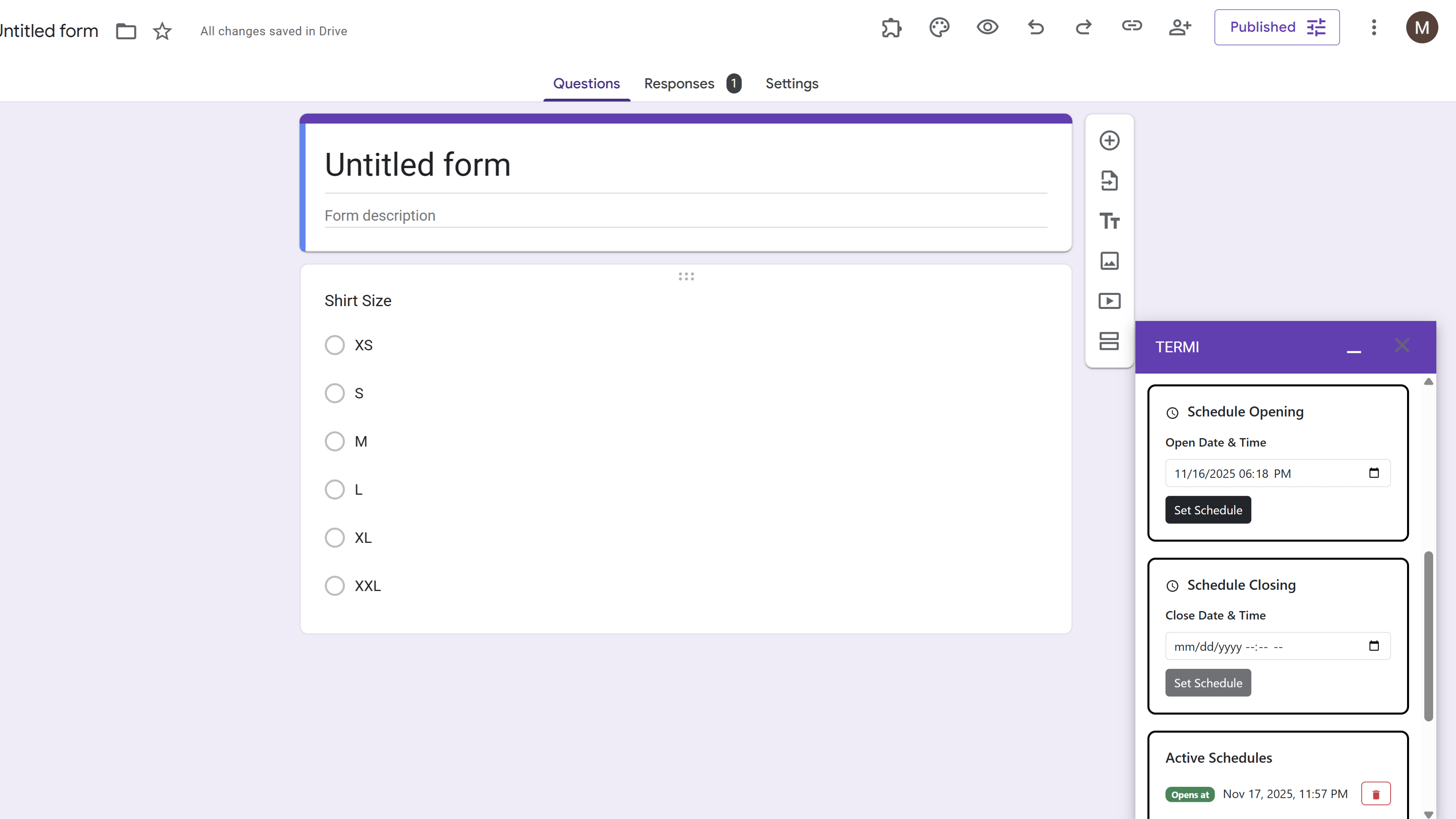
Choose Schedule Type
Select either an opening schedule (when the form becomes available) or a closing schedule (when the form automatically closes). You can create multiple schedules, and they will execute one after another in the order they're scheduled.
Set Date and Time
For an opening schedule, set the opening date and time when you want the form to become available. For a closing schedule, set the closing date and time when the form should automatically close, and enter a custom closing message that respondents will see. Schedules use your Google account's time zone and save automatically.
Tips and Best Practices
- Combine schedules with response limits for maximum control - set both a time window and a capacity limit.
- Clearly communicate the timezone in your form description if managing forms for different time zones.
- Use schedule names to keep track of multiple schedules across different forms.
Common Pitfalls to Avoid
- Double-check your date and time settings - schedules execute automatically at the specified time.
- Remember that schedules execute in chronological order based on the date and time you set.
External Resources
Termi: Form Limiter & Choice Eliminator
Automate form management with response limits, choice quotas, scheduling, and real-time alerts.
- Automatic response limits
- Choice-based quotas
- Time-based scheduling
- Real-time email alerts
- Choice elimination
- Fully automated monitoring