Set Response Limits
Learn how to automatically close your Google Form after a specific number of responses using Termi's Response Count Limiter. Perfect for managing event registrations, job applications, and limited enrollment scenarios.
- Open Termi Sidebar
- Click Response Limiter
- Enable Response Limit
- Set Maximum Responses
- Customize Closing Message
Open Termi Sidebar
In your Google Form, navigate to Extensions → Termi. This launches the add-on in a sidebar showing the Termi home screen with four main feature sections.
Click Response Limiter
On the Termi home screen, click Response Limiter. This opens
the Response Count Limiter interface where you can configure automatic form
closure based on total submission count.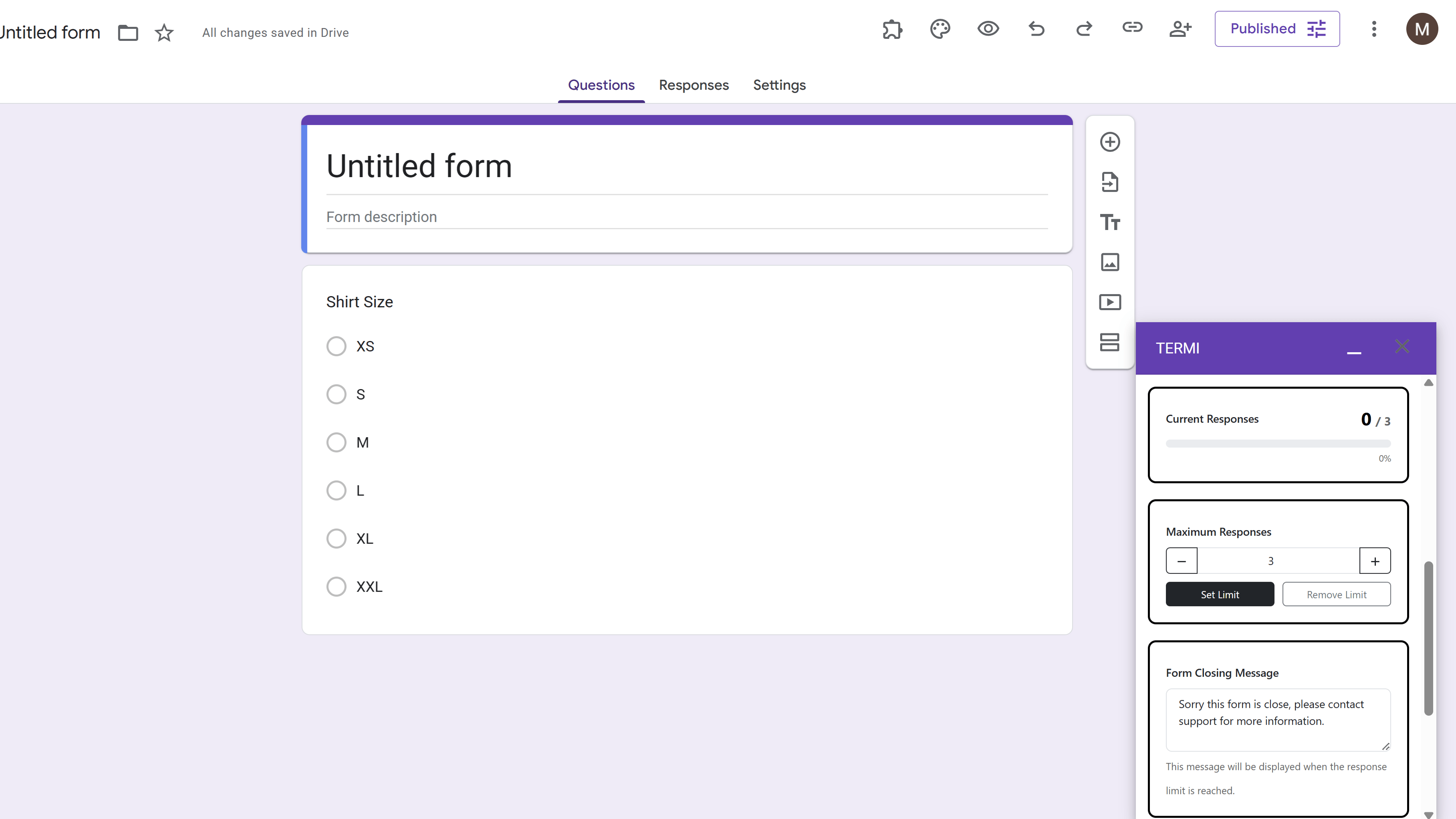
Enable Response Limit
Toggle the Limit Responses switch to ON. This activates the response counting feature that will automatically monitor every form submission in real-time.
Set Maximum Responses
Enter the maximum number of responses you want to accept in the input field. For example, enter "100" to close the form after 100 people submit, or "50" for 50 submissions. This is perfect for first-come-first-served scenarios and limited enrollment events.
Customize Closing Message
In the closing message field, write a custom message that respondents will see
when they try to access your form after the limit is reached. Be clear and
helpful. For example: "Registration is now closed as we have reached our
capacity of 100 attendees. Please contact events@example.com to be added to
the waitlist." Click Save Settings when done.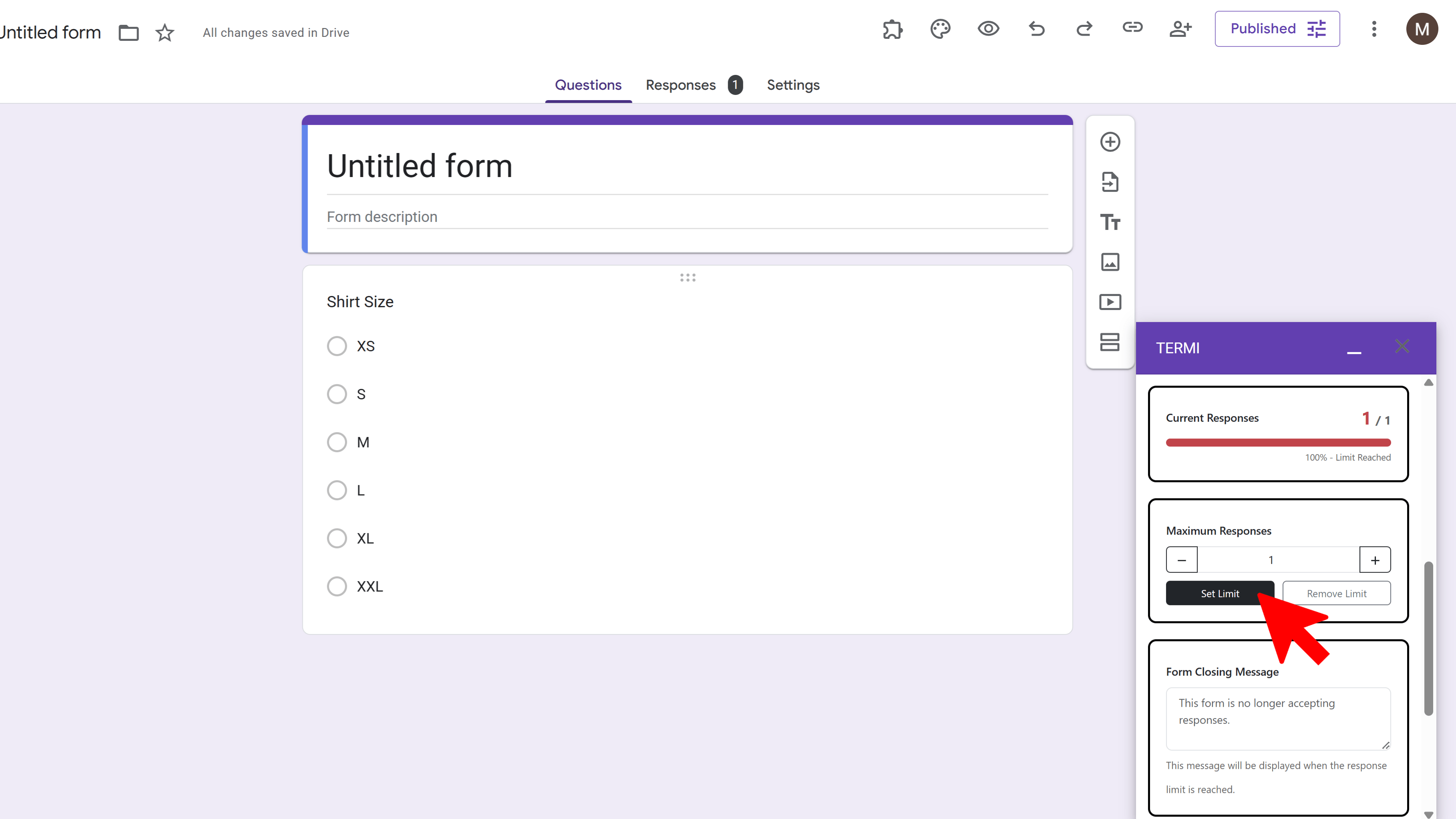
Tips and Best Practices
- Set limits slightly higher than your actual capacity to account for no-shows or cancellations.
- Use response limits for event registrations, job applications, limited surveys, or workshop enrollments.
- Write clear closing messages that explain why the form is closed and provide next steps or alternative contact information.
Common Pitfalls to Avoid
- Don't use generic closing messages - provide context and helpful information to respondents.
- Remember that once the limit is reached, the form closes automatically and immediately.
- Test your settings with a small limit first to verify everything works as expected before launching.
External Resources
Termi: Form Limiter & Choice Eliminator
Automate form management with response limits, choice quotas, scheduling, and real-time alerts.
- Automatic response limits
- Choice-based quotas
- Time-based scheduling
- Real-time email alerts
- Choice elimination
- Fully automated monitoring