How to Create a Pre-filled Link in Google Forms
Learn how to create a pre-filled link in Google Forms to save time and ensure accuracy for your respondents.
7 min read
Updated 11/28/2025
Video Guide
- Open your Google Form
- Add necessary questions to your form
- Get pre-filled link
- Fill out the form
- Get Link
- Distribute the pre-filled link
Open your Google Form
Access Google Forms through your Google account. If you already have a form created, you can use that, or create a new one by clicking on the '+ Blank' button.
Add necessary questions to your form
If you're creating a new form, add all the questions you need. If you're using an existing form, make sure it has all the required questions.
Get pre-filled link
Go to the top right of the page, and click on the three vertical dots to open a dropdown menu. From this menu, select 'Get pre-filled link'. 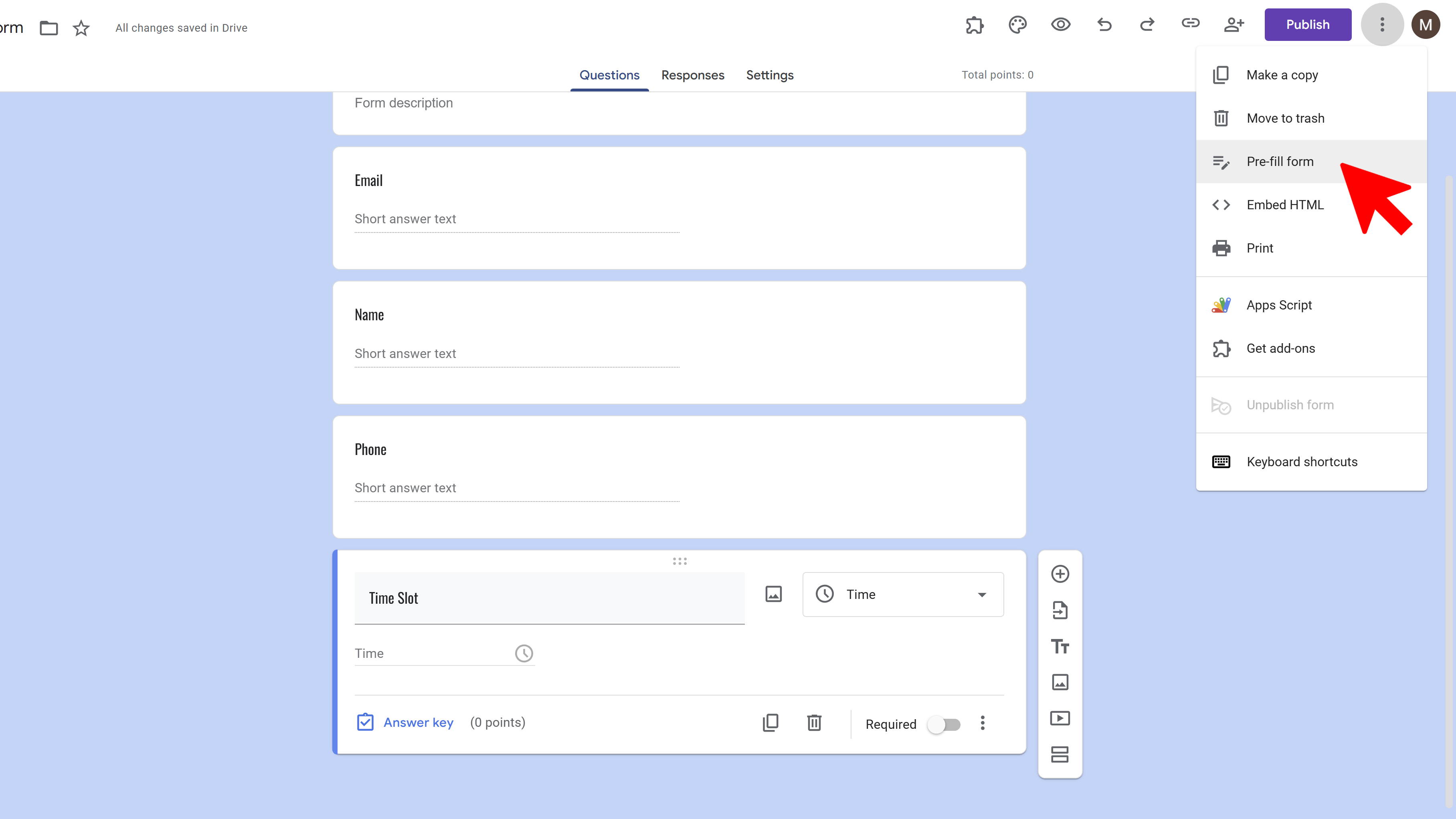
Fill out the form
Fill out the form in the way you want it to be pre-filled. This means entering default information that you want to appear in the form responses.
Get Link
Once you've filled out the form, click on the 'Get Link' button at the bottom right of the page. A window will pop up with the pre-filled link. You can either copy the link or shorten URL by clicking on the 'Shorten URL' box.
Distribute the pre-filled link
Finally, distribute this pre-filled link to the desired recipients. When they open the link, they will see the form with default information you entered.
Tips and Best Practices:
- Always double-check your pre-filled information to make sure it's accurate. Errors in your pre-filled data can lead to confusion for recipients.
- Use pre-filled links to save time for your respondents. For example, if you're sending a form to a specific department in your company, you can pre-fill the department name.
- Note that pre-filled forms should not be used to store sensitive information, as anyone with the link can access the pre-filled data.
Common Pitfalls to Avoid:
- Do not include sensitive information in the pre-filled link as it's not secure.
- Avoid creating overly complex forms. If your form is too long or complex, it might discourage people from completing it.
External Resources:
Try Free
Examize: AI Quiz Maker
Create AI quiz questions for Google Forms in minutes. Generate, translate, and enhance quizzes with support for 70+ languages.
- AI-powered question generation
- Support for 70+ languages
- Multiple question types
- Generate from text, files, or URLs
- Auto-grading with feedback
- Built right into Google Forms