How to Make QR Code for Google Forms
Learn how to create custom branded QR codes for your Google Forms using CrabQR. Generate, customize, and track QR code scans with detailed analytics. Perfect for event registrations, surveys, and feedback forms.
5 min read
Updated 3/20/2026
- Open or Create Your Google Form
- Install and Open CrabQR
- Create Your QR Code
- Customize QR Code Style
- Download Your QR Code
- Track QR Code Scans
Open or Create Your Google Form
Navigate to Google Forms by typing 'forms.google.com' into your web browser. If you're not already signed in to your Google account, you'll be prompted to do so. Click the "+ Blank" button to create a new form, or select an existing form from your recent forms list. If you already have a form ready, simply open it.
Install and Open CrabQR
If you haven't installed CrabQR yet, go to the Google Workspace Marketplace and search for "CrabQR" to install the add-on. Once installed, click on the puzzle piece icon (Add-ons menu) in the top right of Google Forms, then select "CrabQR" → "Open" . The CrabQR sidebar will appear on the right side of your screen. 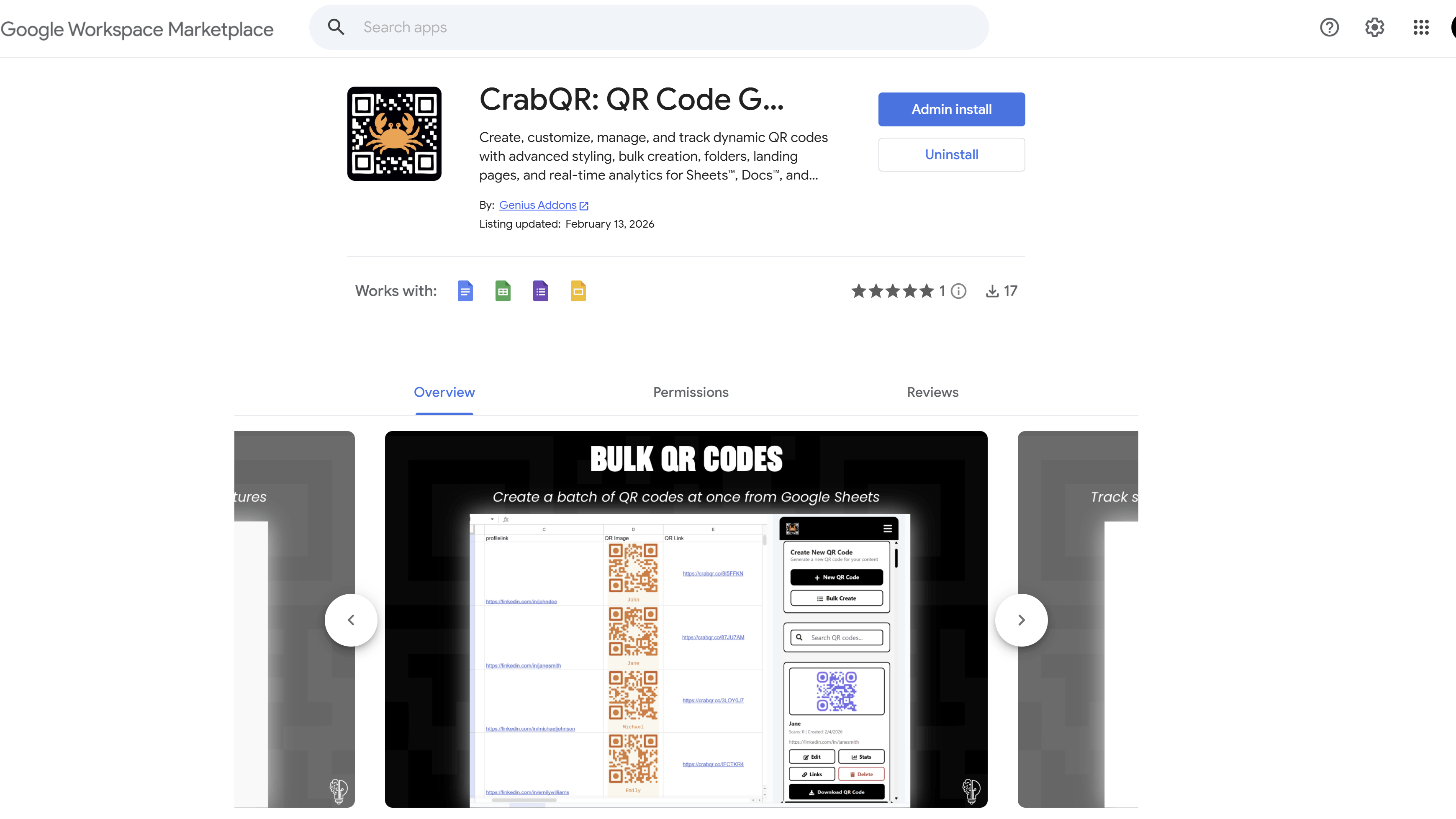
If this is your first time using CrabQR, you'll be prompted to authorize the add-on - click through the authorization steps to grant the necessary permissions. 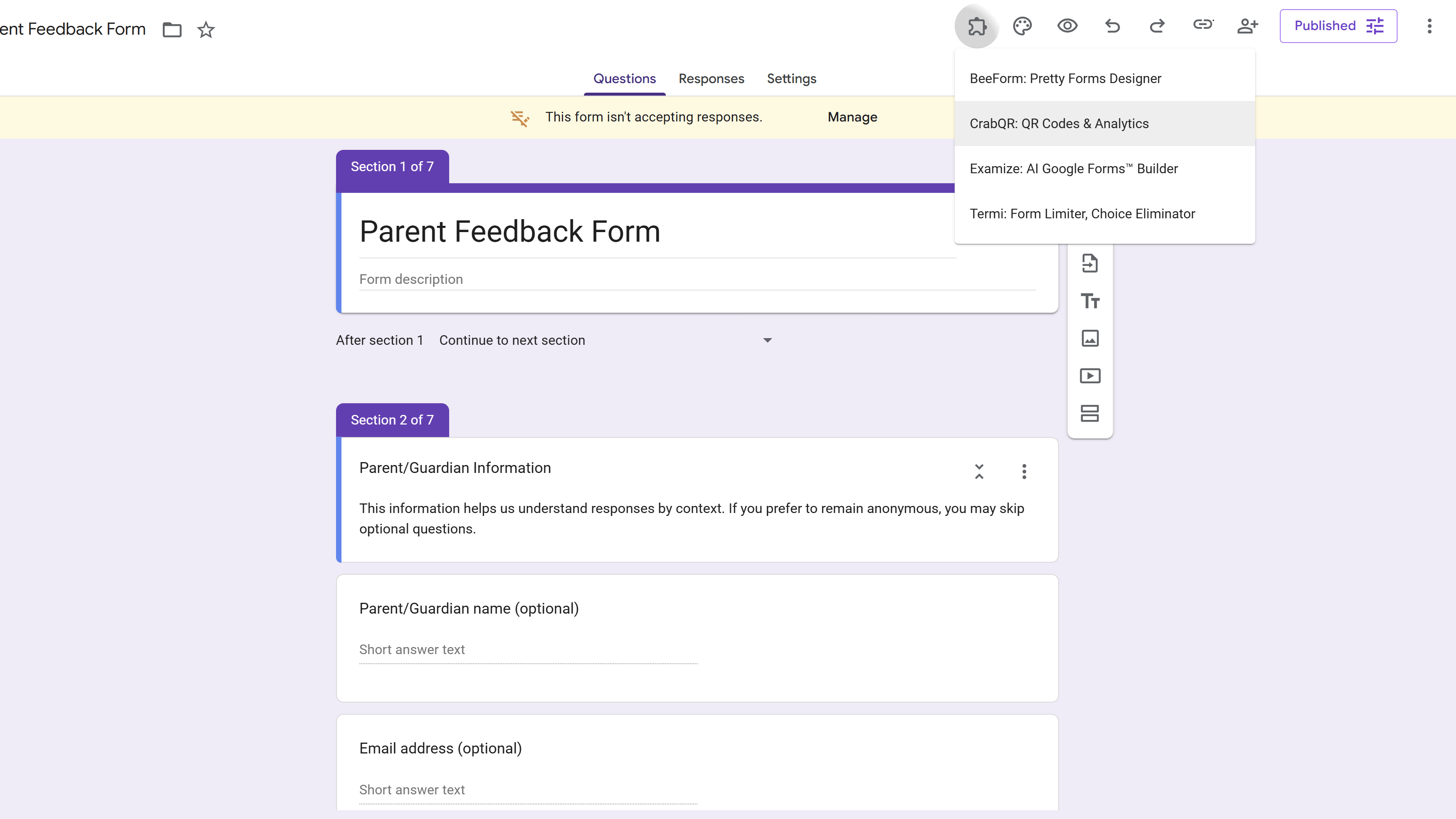
Create Your QR Code
In the CrabQR sidebar, click the "Create QR Code" button. A form will appear asking for details about your QR code. CrabQR will automatically detect your current Google Form and populate the URL field for you. Give your QR code a descriptive name like "2026 Event Registration Form" so you can easily identify it later. Optionally, add a description to provide more context about what this QR code is for. You can also organize your QR code by selecting a folder if you've created any, or leave it in "Uncategorized" for now. 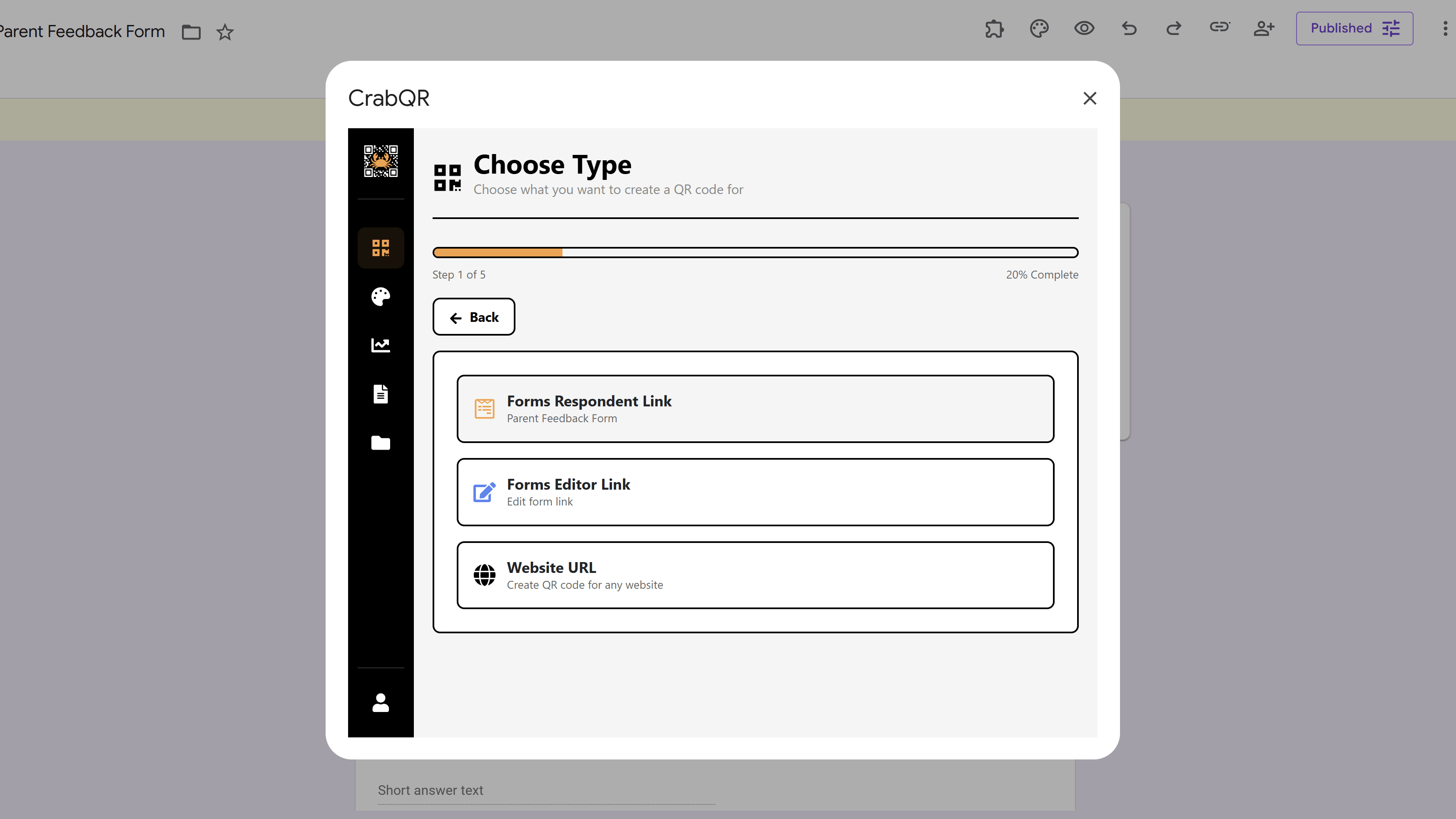
Customize QR Code Style
CrabQR offers powerful customization options to make your QR code match your brand. Click on the "Style" dropdown to select or create a custom style. You can customize:
- Colors: Change the foreground color (QR dots), background color, and corner colors to match your brand palette.
- Corner Styles: Choose between square, extra-rounded, or dot styles for the three corner markers.
- Dot Shape: Select square, rounded, or circular dots for the QR code pattern.
- Logo: Upload your organization's logo to appear in the center of the QR code (recommended size: 200x200px).
- Text Overlay: Add text above or below the QR code, customize font, size, and color.
As you make changes, the preview will update in real-time so you can see exactly how your QR code will look. 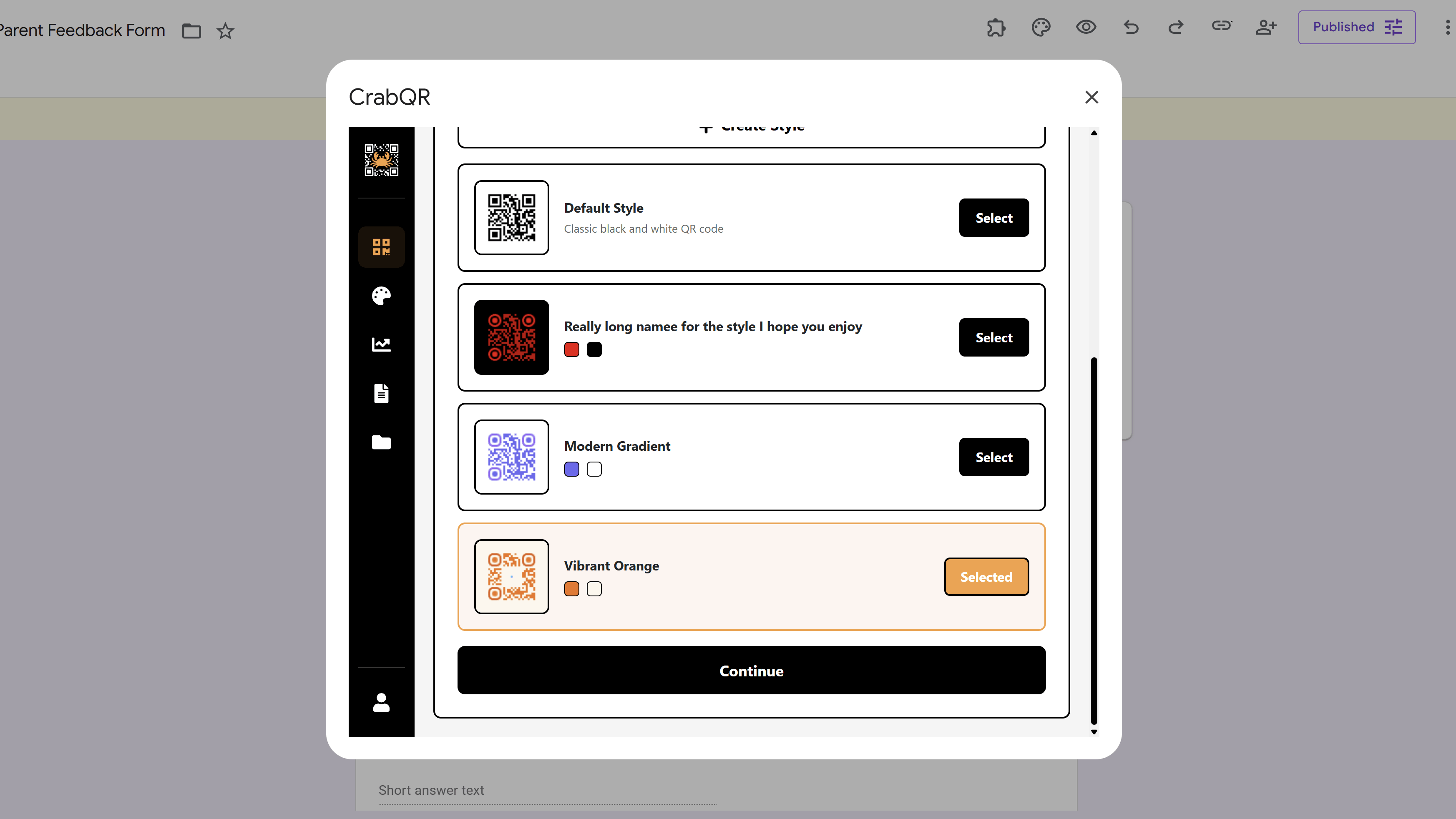
If you plan to reuse this style, click "Save as Template" to save your design for future QR codes.
Download Your QR Code
Once you're satisfied with your QR code design, click the "Create & Download" button. CrabQR will generate your custom QR code and automatically download it as a PNG image file to your computer. The default resolution is 500x500 pixels, which is suitable for most uses. If you need a higher resolution for printing large posters or banners, you can adjust the size slider before downloading (up to 1000x1000 pixels). The downloaded QR code will include all your customizations including colors, logo, and text overlay. 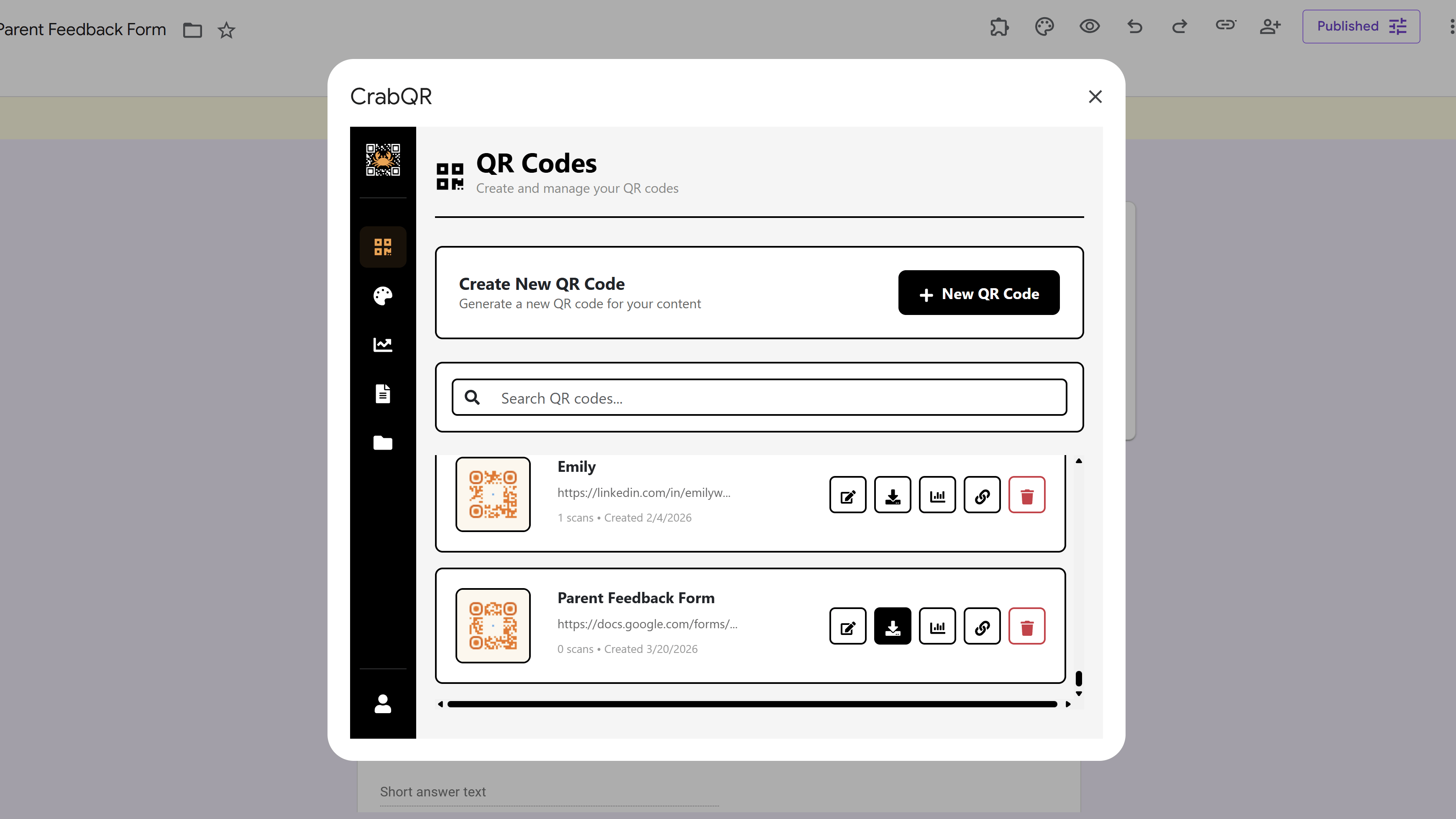
Track QR Code Scans
One of CrabQR's most powerful features is real-time analytics. After creating your QR code, navigate to the "Analytics" section in the CrabQR sidebar. Here you can track:
- Total Scans: See how many times your QR code has been scanned.
- Scan Trends: View 30-day charts showing scan activity over time.
- Geographic Data: Discover which countries and cities are scanning your QR code.
- Device Types: Learn whether users are scanning with mobile, desktop, or tablet devices.
- Recent Activity: See a detailed log of recent scans with timestamps, locations, and device information.
Click on your specific QR code name in the analytics dashboard to view detailed metrics for just that form's QR code. This helps you understand engagement and optimize your form distribution strategy. 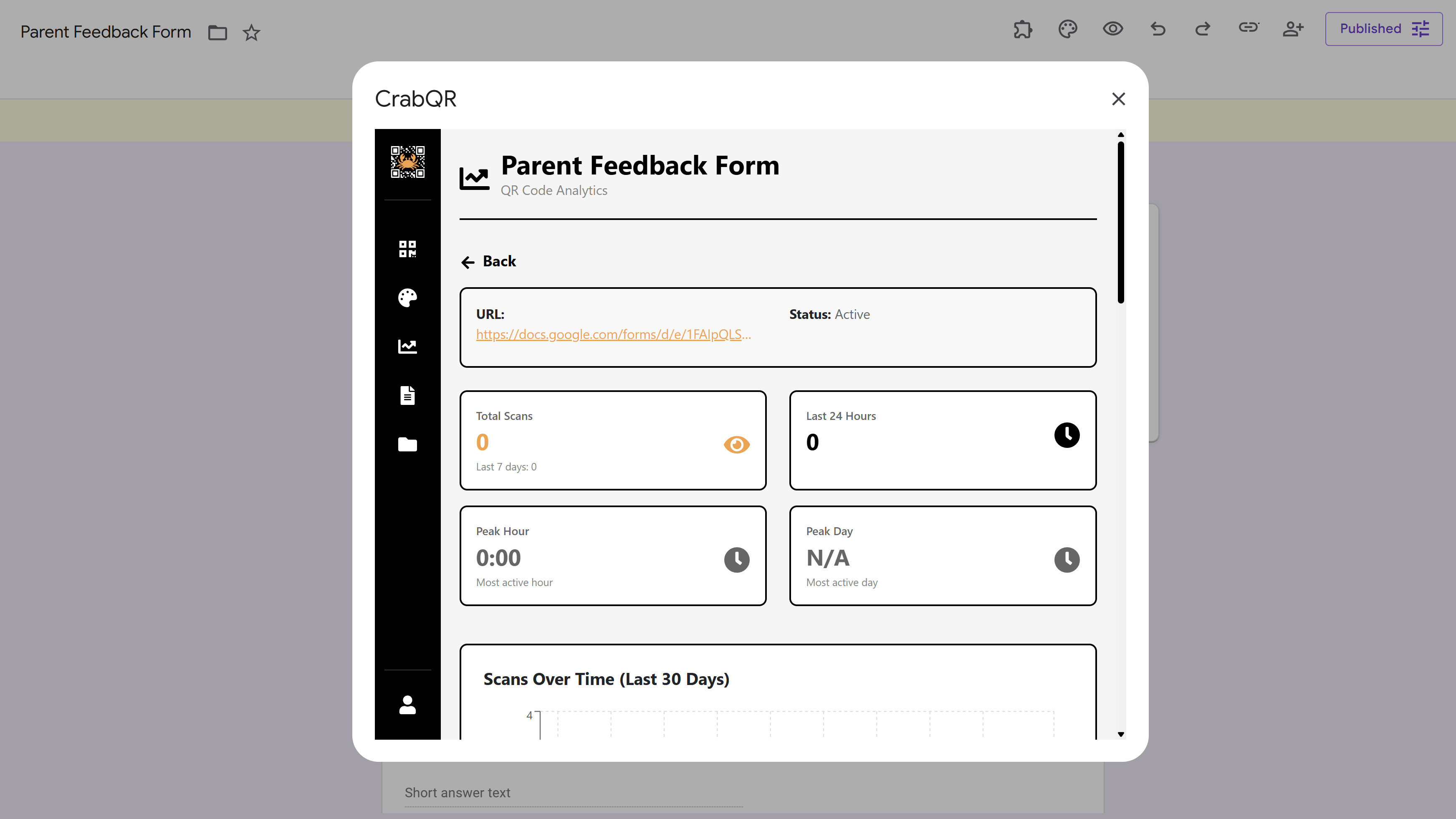
Tips and Best Practices
- Test your QR code immediately after creating it by scanning it with your phone to ensure it directs to the correct form.
- Use high contrast colors (dark dots on light background) for better scannability, especially in varying lighting conditions.
- If adding a logo, keep it relatively small (20-30% of QR code size) to ensure the code remains scannable.
- For printed materials, use at least 2x2 inches (5x5 cm) size to ensure easy scanning from a comfortable distance.
- Create different QR codes for different distribution channels (flyers, posters, emails) to track which channels are most effective.
- Use landing pages in CrabQR to add a branded page before redirecting to your form - perfect for explaining what the form is about.
- Set up PIN protection or expiration dates in CrabQR's security settings if you want to control access to your form.
Common Pitfalls to Avoid
- Don't make the QR code too small on printed materials - if it's smaller than 1x1 inch, it may be difficult to scan.
- Avoid using very similar foreground and background colors, as this reduces the contrast needed for reliable scanning.
- Don't place QR codes on reflective or curved surfaces, as this can interfere with scanning reliability.
- Remember to test your form settings (response limits, requiring sign-in, etc.) before distributing the QR code widely.
- If your form collects personal information, make sure to mention this in any text accompanying your QR code to comply with privacy regulations.
Advanced Features
- Bulk QR Code Generation: If you need to create QR codes for multiple forms, use CrabQR's bulk creation feature. You can import form URLs from a spreadsheet or Google Sheets range.
- Dynamic QR Codes: CrabQR creates trackable QR codes where you can change the destination URL without regenerating the QR code image.
- Landing Pages: Create custom branded redirect pages that appear before the form, perfect for providing context or instructions.
- Folder Organization: Organize multiple form QR codes into folders like "Event Registrations," "Feedback Forms," or "Surveys" for easy management.
- Team Collaboration: With CrabQR's Team or Enterprise plans, share QR code templates and analytics with your entire organization.
Alternative: Free QR Code Generator
If you need a quick QR code without analytics or advanced features, you can use our free online QR code generator . Simply paste your Google Form link and generate a basic QR code instantly - no installation or sign-up required. However, you won't get customization options, analytics tracking, or the ability to manage multiple QR codes.
External Resources
- Install CrabQR from Google Workspace Marketplace
- CrabQR: Bulk QR Code Generator
- Free QR Code Generator Tool
- Google Forms: Publish & Share Your Form
- Google Forms: How to Use Google Forms
Try Free
CrabQR: Bulk QR Code Generator
Create custom branded QR codes with analytics tracking. Generate static and dynamic QR codes with custom designs, logos, and colors. Track scans in real-time with detailed analytics.
- Bulk QR code generation
- Custom styles, logos & colors
- Real-time scan analytics
- Landing page builder
- Folder & template management
- Google Sheets integration